
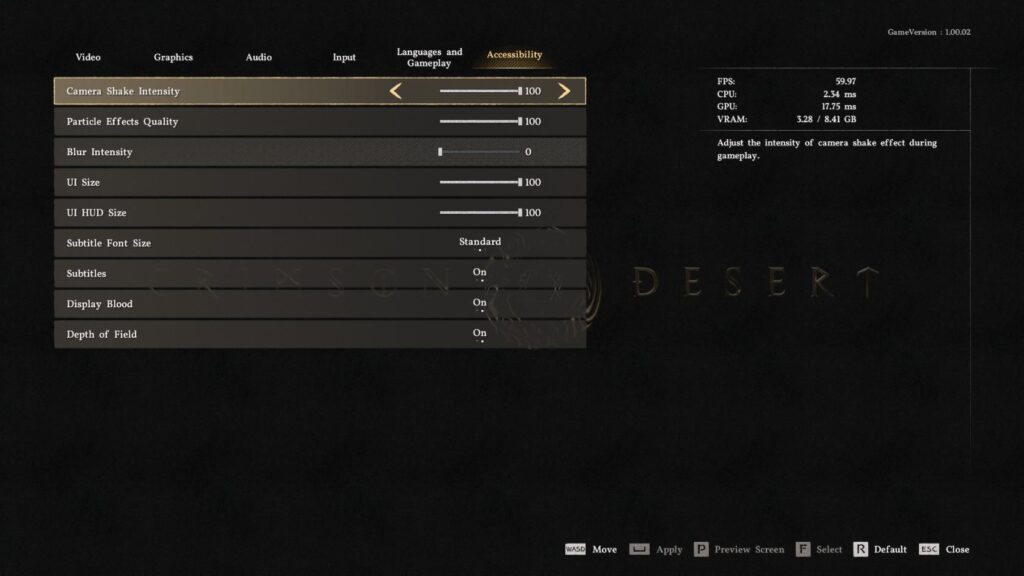
In order to fix the “blurry” visuals in Crimson Desert on your RTX 3070, you need to kill the artificial softening. Head into Accessibility and drop Blur Intensity to 0—it’s a small change that instantly sharpens the world.
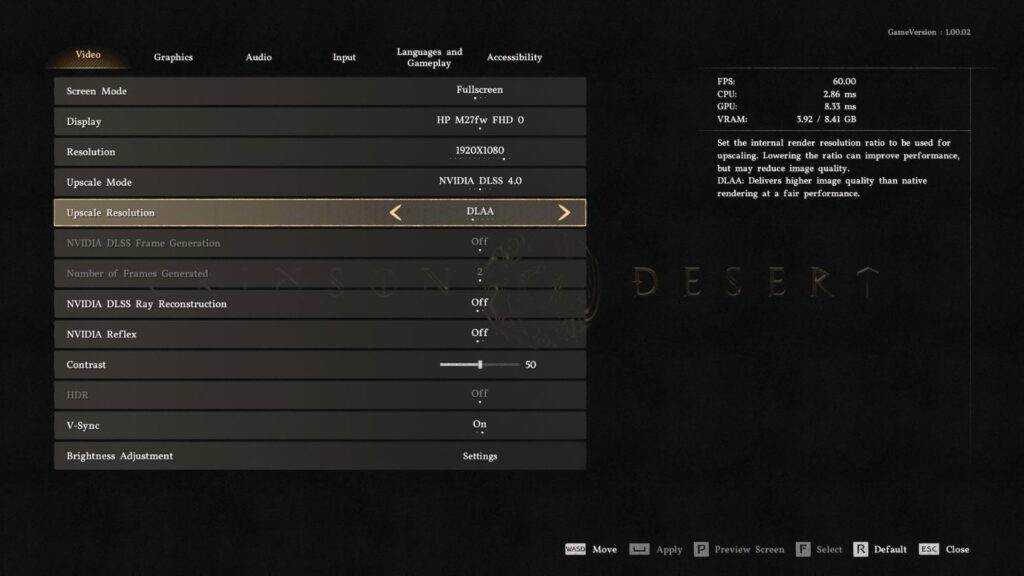
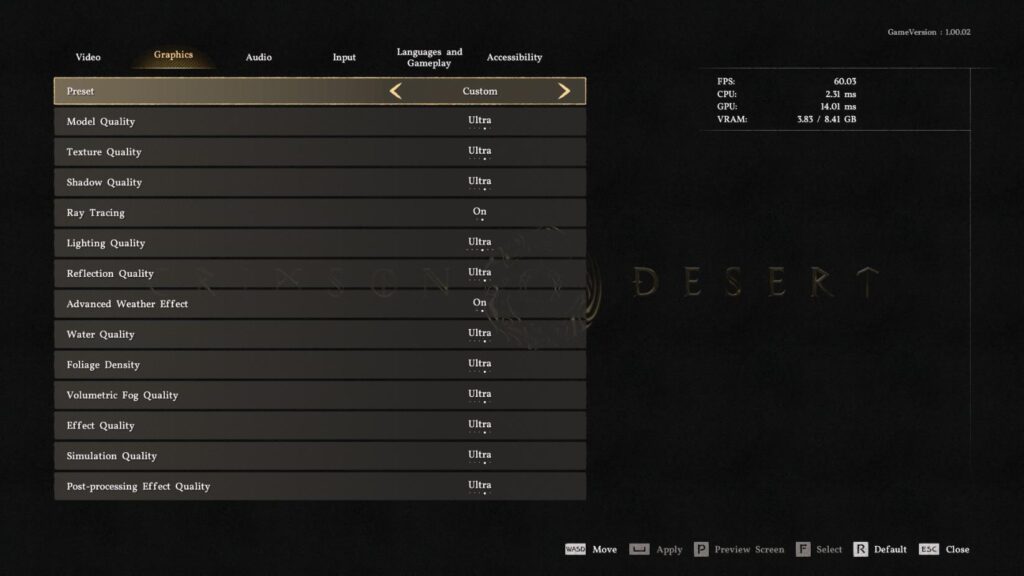
For performance, stick with DLSS 4.0 on Quality or DLAA. While DLSS 4.5 is newer, it’s a VRAM hog that’ll make your 8GB 3070 stutter in high-density areas. Keep your Lighting at Ultra to maintain visual depth, and if your fans are screaming, cap your power limit at 90% to stay cool without losing frames.
Quick Checklist
- Blur Intensity: 0 (Essential for sharpness).
- Lighting: Ultra+ (Prevents a “flat” look).
- DLSS Version: 4.0 (Better stability than 4.5 for 8GB VRAM).
- DLSS Mode: Quality or DLAA (Avoid “Performance” mode blur).
- Power Target: 90% (Reduces heat and fan noise).
Crimson Desert Visual Fix: Optimizing DLSS 4.0 & Clarity for RTX 3070
1. Eliminating In-Game Blur
The primary cause of blur in Crimson Desert is often the default accessibility and post-processing filters.
- The Accessibility Fix: Navigate to Options > Accessibility. Locate the Blur Intensity slider and set it to 0. This removes the artificial softening applied to the image.
- Lighting Quality: Ensure Lighting is set to Ultra or higher. Lower lighting settings significantly degrade the global illumination, making the game look flat and smeared in shadowed areas.
2. DLSS Optimization: Version 4.0 vs. 4.5
While it’s tempting to always use the newest version, my testing on the RTX 3070 shows that newer isn’t always better for this specific title.
- The Sweet Spot: Use DLSS 4.0. In my benchmarks, DLSS 4.5 caused significant FPS drops on the 8GB VRAM of the 3070. DLSS 4.0 provided the best balance of frame stability and clarity.
- Upscaling Modes: Set DLSS to Quality or DLAA (Deep Learning Anti-Aliasing). Avoid “Performance” mode at 1440p as it reintroduces the blur we are trying to fix.
- Pro Tip: If the in-game sharpening isn’t enough, use the Nvidia App/Control Panel to set a custom Image Sharpening Override specifically for the Crimson Desert executable.
3. Performance & Thermal Management
Crimson Desert is a demanding title that can push the RTX 3070 to its thermal limits, causing fan noise to spike.
- Power Limiting: I recommend using GPU Tweak III to set a power target limit (e.g., 90%). This prevents the card from hitting 100% fan speed while maintaining stable clocks.
- Preset Baseline: Start at the Ultra Preset. The 3070 handles this well at 1440p, but I do not recommend pushing individual settings to “Max/Cinematic” as the performance-to-visual gain is negligible and risks VRAM stutter.
Summary Table: Recommended RTX 3070 Settings
| Setting | Recommended Value | Why? |
| Preset | Ultra | Best stability for 30-series cards. |
| DLSS Version | 4.0 | Better FPS stability than 4.5. |
| DLSS Mode | Quality / DLAA | Eliminates upscaling artifacts. |
| Blur Intensity | 0 | Removes post-process “smearing.” |
| Lighting | Ultra+ | Necessary for visual depth. |
Last Updated on April 3, 2026

An avid listener of music from a number of countries. Writing is his hobby and passion. A follower of all the latest android and PC games. Not to mention his favorite: Mobile Legends!