
To fix the Europa Universalis V crash during the “Loading Game Resources” screen, use the Intel Software Development Emulator (SDE) to bypass missing AVX2 CPU instructions. This startup crash typically affects older processors, and using an emulator tricks the game into loading correctly on both Intel and AMD systems.
Create a shortcut for sde.exe and modify the target path to include -avx2 -- followed by your eu5.exe file path. Run this shortcut as an Administrator and wait – it may take up to 10 minutes for the game to reach the main menu. Once you successfully load into the world map, you can typically launch the game normally through Steam for future sessions.
Quick Fix Checklist
- Key Tool: Intel Software Development Emulator (SDE).
- Command:
sde.exe -avx2 -- "C:\Path\To\eu5.exe". - Alternative: Use
-hswif-avx2fails on newer game patches. - Patience: Expect heavy lag and long initial load times during the emulation.
Europa Universalis V: How to Fix the Loading Game Resources Startup Crash

This guide provides a step-by-step walkthrough on how to bypass this crash using a tool from Intel. This method works for both Intel and AMD users.
Why Is Europa Universalis V Crashing?
The primary cause for this specific crash is often related to the instruction set of your CPU. Specifically, many modern games require the AVX2 instruction set. If your CPU was released around 2012 or earlier, it may be missing this requirement.
While your computer might run other games perfectly, the lack of AVX2 prevents the game’s engine from loading resources correctly. By using an emulator, you can trick the game into thinking your CPU has the necessary instructions.
Step-by-Step Fix Using Intel SDE
To fix this, we will use the Intel Software Development Emulator (SDE). Follow these instructions carefully to get your game running.
1. Download the Necessary Tool
Visit the official Intel website to download the Software Development Emulator.
- Note: Even if you have an AMD processor, this tool will still work because it is an emulator.
- Security: Your browser or Windows may flag this file as unsafe. As long as you download it directly from the official Intel website, it is a legitimate developer tool.
2. Prepare the SDE Folder
- Extract the downloaded files into a folder of your choice.
- Locate the file named sde.exe.
- Right-click sde.exe and select Create Shortcut.
3. Edit the Shortcut Path
You need to tell the emulator where your game is located.
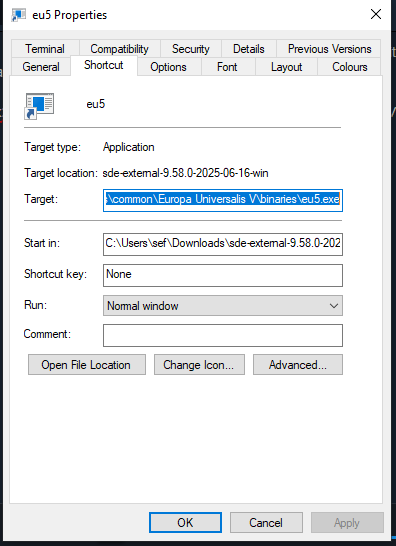
- Right-click the new shortcut you created and select Properties.
- In the Target field, you will see a path ending in
sde.exe. - Go to the very end of that text, add a space, and paste the following command (ensuring the path to your game is correct):
sde.exe -avx2 -- "C:\Program Files (x86)\Steam\steamapps\common\Europa Universalis V\binaries\eu5.exe"
Note: If your game is installed on a different drive (like E: or D:), make sure to update the file path in the quotation marks to match your actual installation folder.
4. Run the Emulator as Administrator
- Right-click your modified shortcut and select Run as Administrator.
- A black terminal window (CMD) will open.
- Press the Enter key on your keyboard.
What to Expect During the First Run
It is important to be patient during this process. The first time you use this fix, the game will behave differently than usual.
- Long Loading Times: It may take up to 10 minutes for the game window to actually appear. Check your Task Manager to ensure the process is running.
- Heavy Lag: Once the game opens, the music and menus will likely lag significantly. This is normal during the emulation process.
- The Goal: Your only goal here is to reach the main menu and click Create New Game. Once you see the world map, you can close the game and the terminal window.
Troubleshooting and Alternative Commands
If the -avx2 command does not work for you, there is an alternative argument you can try.
| Command Argument | When to Use |
| -avx2 | The standard fix for most older CPUs. |
| -hsw | Use this if -avx2 fails, especially on game version 1.0.2 or later. |
To change this, simply replace -avx2 with -hsw in the shortcut properties you created in Step 3.
Final Results
After you have successfully reached the map once using the emulator, you should be able to launch the game normally through Steam without using the shortcut.
- You generally only need to perform this fix once per game patch.
- If the game crashes again after a major update, repeat these steps.
- Expect a brief freeze during “Ironman” saves; this is a common occurrence on older hardware and does not mean the game has crashed.
Last Updated on February 26, 2026

An avid listener of music from a number of countries. Writing is his hobby and passion. A follower of all the latest android and PC games. Not to mention his favorite: Mobile Legends!