
To fix blank skill menus and “VP9 Codec Missing” errors in Nioh on Windows 10 LTSC, you need to manually install the media extensions that this “stripped” version of Windows lacks. Since LTSC excludes the Microsoft Store by default, the game cannot play move previews or cinematics, leading to black boxes or game crashes.
The most reliable fix is to restore the Microsoft Store using the LTSC-Add-MicrosoftStore script from GitHub, which allows you to officially download the VP9 Video Extensions. Alternatively, you can use PowerShell to manually inject the .appx codec package if you prefer to keep your system store-free.
LTSC Quick Fix Checklist
- Method 1 (Manual): Download the VP9
.appxand runAdd-AppxPackagein PowerShell (Admin). - Method 2 (Store): Run
Add-Store.cmdfrom GitHub, then download VP9 Video Extensions from the Store. - Nvidia Users: Download the NVIDIA Control Panel from the Store to prevent “Device Lost” crashes.
- Pro Tip: If you use an “N” edition of LTSC, ensure the Media Feature Pack is enabled in Windows Features first.
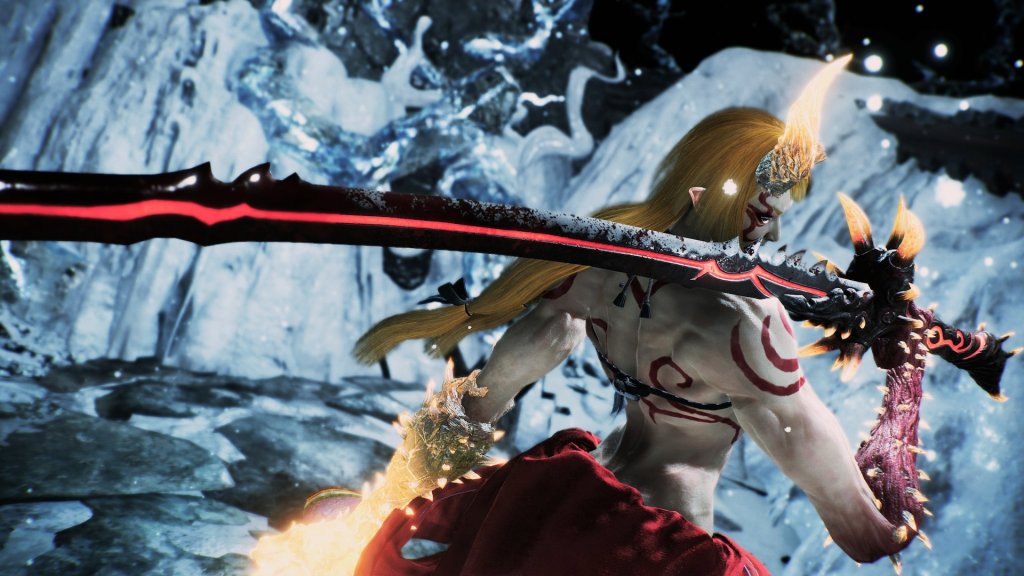
The LTSC Media Fix: Enabling VP9 Codecs for Nioh
Below are two verified methods to restore video functionality and stop game crashes.
The Problem: Missing Media Extensions
Nioh uses the VP9 Video Codec for in-game move previews and cinematics. Without it:
- Skill trees show blank black boxes.
- A persistent Windows error popup overlays the game.
- The game may crash during certain menu transitions.
Method 1: The “No-Store” Manual Install (Lightweight)
Best for: Users who want to keep their LTSC installation 100% clean of Microsoft Store components.
- Locate the Community Fix: Visit the Steam Community Thread regarding VP9 errors.
- Download the .Appx: This method involves manually downloading the VP9
.appxor.msixbundlepackage from a third-party repository like RG-Adguard. - PowerShell Injection: You must install it via PowerShell (Admin) using the command:
Add-AppxPackage -Path "C:\Path\To\Your\File.appx"
Note from Experience: This method is hit-or-miss on LTSC because the codec often has dependencies (like the Microsoft Framework) that are also missing from the OS. If the popup persists, proceed to Method 2.
Method 2: The GitHub Store Restoration (Reliable)
Best for: Users who want a “set it and forget it” fix that ensures all future codec requirements are met.
This method uses the LTSC-Add-MicrosoftStore script to safely reintegrate the Store framework.
Step 1: Download the Framework
Go to the GitHub link above and download the repository. Ensure you select the version corresponding to your build (e.g., LTSC 2019 or LTSC 2021).
Step 2: Run the Installer
- Extract the
.zipfile. - Right-click
Add-Store.cmdand select Run as Administrator. - Wait for the process to complete and Reboot your system.
Step 3: Install the Official Codec
- Open the newly installed Microsoft Store.
- Search for “VP9 Video Extensions”.
- Click Install. This is a free official extension from Microsoft.
Step 4: (Nvidia Users Only) Stability Boost
If you have an Nvidia GPU, LTSC often lacks the management layer for drivers.
- Search the Store for “NVIDIA Control Panel”.
- Download and install it.
Real-world feedback suggests this resolves “Device Lost” crashes often associated with Nioh on LTSC.
Summary Checklist
| Feature | Method 1 (No Store) | Method 2 (Add Store) |
| Difficulty | Moderate | Easy |
| Success Rate | ~50% | ~99% |
| OS Bloat | Zero | Minimal |
| Fixes Skill Previews? | Yes | Yes |
Credits & Troubleshooting
- Credits: Thanks to the Steam Community contributors and
kkkgoon GitHub for maintaining the LTSC restoration scripts
Still seeing a black screen? Ensure your “Media Feature Pack” is enabled in Windows Features, as some LTSC “N” editions require this as a baseline.
Last Updated on March 4, 2026

An avid listener of music from a number of countries. Writing is his hobby and passion. A follower of all the latest android and PC games. Not to mention his favorite: Mobile Legends!