
To boost Europa Universalis V (EU5) performance and fix lag, you should create a custom Windows shortcut for the eu5.exe file and modify its target to include the /high priority command. This manual method is more reliable than standard Steam launch flags because it forces Windows to prioritize CPU resources for the game from the moment it starts, effectively reducing stuttering and frame rate drops.
To ensure this optimization works every time you launch through Steam, you must link your new shortcut in the Steam Launch Options using the file path followed by the %command% variable. By following these steps, you provide the game with consistent CPU allocation, resulting in smoother gameplay during resource-intensive grand strategy sessions without needing any third-party software.
Quick Optimization Summary
- Primary Fix: Create a shortcut with the Target:
cmd.exe /c start "" /high "[Path to eu5.exe]". - Steam Integration: Add the path to your new shortcut in Steam Properties to automate the boost.
- Key Benefit: Prevents background tasks from throttling your CPU during heavy late-game calculations.
How to Boost Europa Universalis V Performance and Fix Lag on Windows

Why Standard Launch Commands Often Fail
Many players use the -high command in Steam properties to tell Windows to give the game more CPU resources. However, this method can be unreliable, especially for games that reboot during startup or use complex launchers. By creating a custom shortcut, you ensure that Windows always recognizes the game as a high-priority task from the moment it starts.
How to Locate Your Game Files
To begin, you need to find where the game is installed on your computer. This is usually located within your Steam library folders rather than your Documents folder.
- Open your file explorer.
- Navigate to the drive where your games are installed.
- Follow this general path:
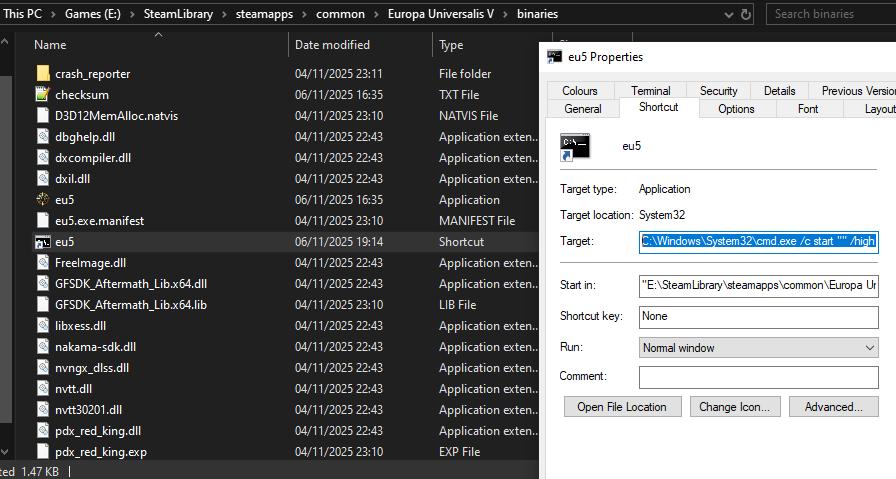
SteamLibrary\steamapps\common\Europa Universalis V\binaries. - Look for the file named eu5.exe.
How to Create and Configure a High-Priority Shortcut
Once you have located the executable file, you need to create a special shortcut that tells Windows to run the game with high priority.
- Right-click on eu5.exe and select Create shortcut.
- Rename this shortcut to something simple, such as EU5_High.
- Right-click your new shortcut and select Properties.
- Find the Target field. You will see a file path already there. You need to change it to a command that uses the Windows Command Prompt.
Replace the text in the Target field with the following line, ensuring you update the drive letter and path to match your specific installation:
C:\Windows\System32\cmd.exe /c start "" /high "E:\SteamLibrary\steamapps\common\Europa Universalis V\binaries\eu5.exe"
Note: Make sure the path inside the quotation marks points exactly to where your game is installed.
How to Test Your Shortcut
Before moving to the final step, you must verify that the shortcut works correctly. Double-click the EU5_High shortcut. If the game launches successfully, the command is correct. You can then close the game using the Task Manager or by pressing Alt+F4.
How to Connect the Shortcut to Steam
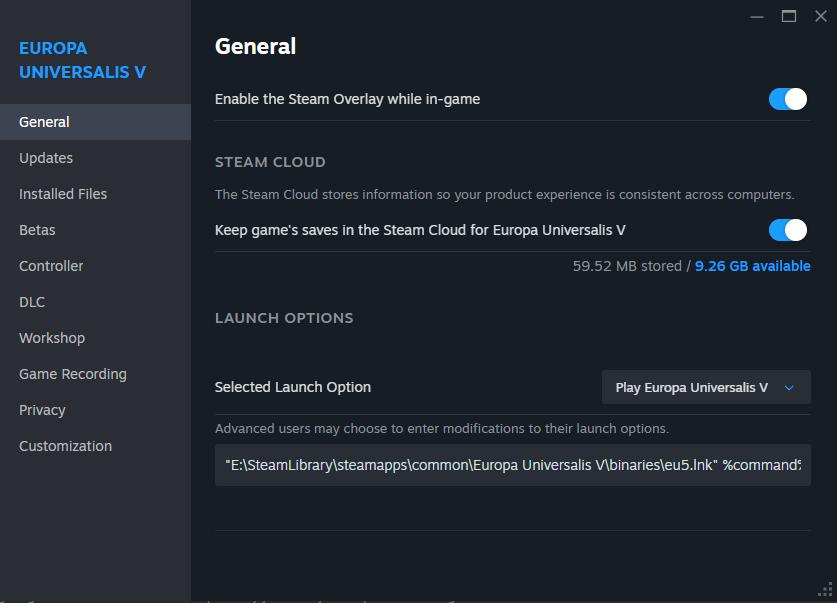
To ensure the game always runs this way when you launch it through the Steam interface, you must update your Steam launch options.
- Open your Steam Library.
- Right-click on Europa Universalis V and select Properties.
- Under the General tab, find the Launch Options box.
- Input the path to your new shortcut followed by the command variable. It should look like this:
"E:\SteamLibrary\steamapps\common\Europa Universalis V\binaries\EU5_High.lnk" %command%
Again, ensure the drive letter and folder names match your specific computer setup.
Summary of Benefits
By following these steps, you provide the game with the following advantages:
- Consistent CPU Allocation: Windows will prioritize the game’s processing needs over background tasks.
- Reduced Stuttering: High priority helps maintain a steady frame rate during intensive gameplay moments.
- Reliability: This method is more stable than standard Steam flags for games with multiple startup phases.
This optimization technique is safe and can be applied to almost any high-performance game on Windows if you experience similar lag or performance drops.
Last Updated on February 26, 2026

An avid listener of music from a number of countries. Writing is his hobby and passion. A follower of all the latest android and PC games. Not to mention his favorite: Mobile Legends!