
To fix Battlefield 6 startup errors caused by Proxifier, use a batch script to disable the app and its kernel driver, ProxifierDrv, before launching. This prevents the anti-cheat system from flagging your account or crashing the game due to driver conflicts.
Run Option 0 in the script to stop the services before you play, and use Option 1 to restore your proxy settings afterward. Ensure you run the script with Administrator privileges to successfully manage the system drivers.
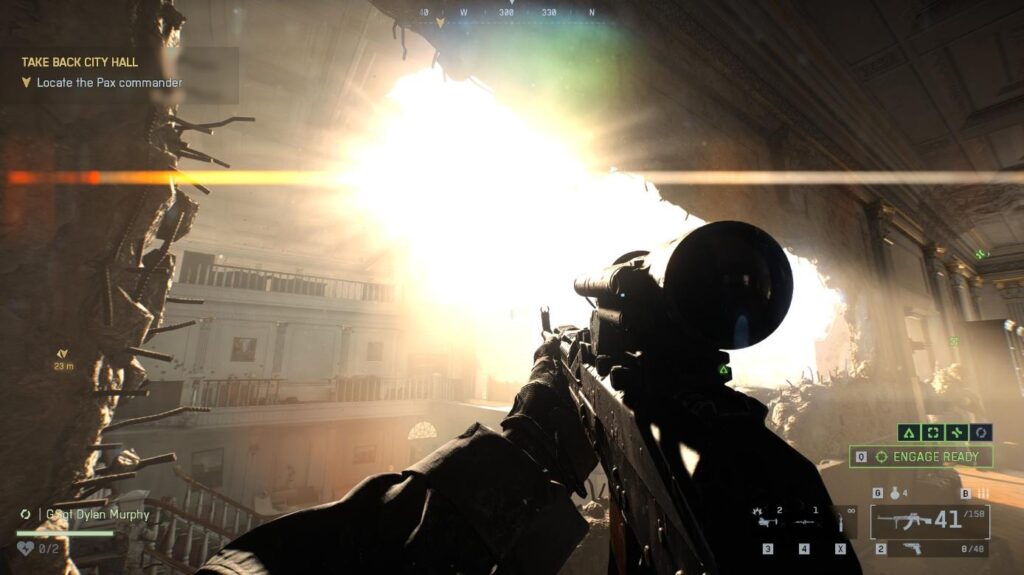
How to Fix Battlefield 6 Startup Errors and Anti-Cheat Conflicts Using a Proxifier Toggle Script
This guide provides a comprehensive walkthrough on how to use a custom batch script to automate the management of Proxifier, ensuring your game environment remains clean before you deploy to the battlefield.
Understanding the Proxifier and Anti-Cheat Conflict
Battlefield 6 utilizes robust anti-cheat technology designed to ensure a fair play environment. Proxifier operates by using a kernel-level driver (ProxifierDrv) to intercept network traffic.
When the anti-cheat system detects this driver or the active application, it may interpret it as an attempt to mask identity or manipulate connection stability, leading to:
- Anti-Cheat Detection: Potential flags on your account.
- Startup Issues: The game failing to launch or crashing to the desktop.
- Driver Conflicts: Stability issues between the game engine and the proxy driver.
To resolve these issues, you must fully disable both the application and its driver before launching the game.
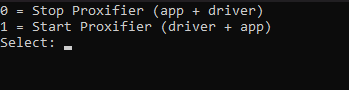
The Proxifier Manual Control Batch Tool
Instead of navigating through the Task Manager and Command Prompt every time you want to play, you can use a streamlined batch script. This tool features automatic admin elevation, meaning it will request the necessary permissions to stop and start system drivers without manual intervention.
The Script Code
Copy the following code into a plain text editor:
@echo off
:: Auto Elevation
nul 2>&1 "%SystemRoot%\system32\cacls.exe" "%SystemRoot%\system32\config\system"
if '%errorlevel%' NEQ '0' (
powershell -command "Start-Process '%~f0' -Verb RunAs"
exit
)
mode con: cols=45 lines=6 >nul
echo 0 = Stop Proxifier (app + driver)
echo 1 = Start Proxifier (driver + app)
choice /c 01 /n /m "Select: "
set choice=%errorlevel%
if "%choice%"=="1" goto OFF
if "%choice%"=="2" goto ON
exit
:OFF
taskkill /F /IM Proxifier.exe >nul 2>&1
sc stop ProxifierDrv >nul 2>&1
exit
:ON
sc start ProxifierDrv >nul 2>&1
start "" "C:\Program Files (x86)\Proxifier\Proxifier.exe"
exit
Step-by-Step Guide: How to Save and Use the Script
Follow these steps to set up your one-click toggle for Battlefield 6.
1. Create the File
Open Notepad on your Windows computer. Paste the code block provided above into the empty document.
2. Save with the Correct Extension
Go to File > Save As. In the “Save as type” dropdown, select All Files (.). Name the file ProxifierSwitch.bat. You can save this to your desktop for easy access.
3. Run the Tool
Double-click the ProxifierSwitch.bat file. Because the script includes an elevation command, it will prompt you for Administrator privileges. This is required to stop the ProxifierDrv system service.
4. Toggle Your Connection
The script window will appear with two simple options:
- Press 0: This kills the Proxifier application and stops the kernel driver. Do this before launching Battlefield 6.
- Press 1: This restarts the driver and launches the Proxifier application. Do this after you have finished your gaming session.
Technical Details: What Happens Under the Hood
Understanding the mechanics of this tool helps in troubleshooting and ensures you know exactly what is changing on your system.
Option 0: The Stop Command
When you select 0, the tool executes taskkill to force-close the user-interface application. It then uses the sc stop command to halt the kernel-level driver. Because the driver is stopped, the anti-cheat system will no longer see it as an active threat.
Option 1: The Start Command
When you select 1, the tool reverses the process. It uses sc start to re-initialize the driver and then directs Windows to launch the Proxifier executable from its default installation path (C:\Program Files (x86)\Proxifier\Proxifier.exe).
Verifying Driver Status
If you want to manually verify if the driver is active or stopped, you can open a standard Command Prompt and type: sc query ProxifierDrv
Important Usage Notes for Battlefield 6 Players
- Kernel Drivers: Since
ProxifierDrvis a kernel-level component, starting and stopping it may not always produce a visible confirmation message in the script window, but the action is performed instantly. - Default Pathing: This script assumes Proxifier is installed in the default directory. If you have installed it to a custom drive (e.g., D: drive), you will need to edit the file path in the
:ONsection of the script. - Clean Environment: For the best results, always run Option 0 at least 30 seconds before hitting the “Play” button in your game launcher to ensure all background threads have fully terminated.
Last Updated on February 26, 2026

An avid listener of music from a number of countries. Writing is his hobby and passion. A follower of all the latest android and PC games. Not to mention his favorite: Mobile Legends!