
To fix the grainy, blurry visuals in Resident Evil Requiem, you must manually bypass the engine’s locked post-processing. By editing the config.ini file in your game directory, you can disable the Film Grain filter and boost the Image Quality scaling beyond the default limits. Pairing these technical tweaks with in-game adjustments—like turning off Lens Distortion – will result in a significantly sharper, high-fidelity image on PC.
RE9 Graphics Overhaul Checklist
- Config Tweak: Set
FilmGrainEnable=FalseandImageQualityRate=15in yourconfig.ini. - File Protection: Set
config.inito Read-only to prevent the game from resetting your changes. - In-Game Fix: Turn Lens Distortion to Off to remove edge warping.
- Clarity Boost: Switch Anti-aliasing to FXAA or Off if TAA creates too much blur.
- Community Fix: Use REFramework and the “No Film Grain” mod from Nexus Mods for a more stable, automated solution.
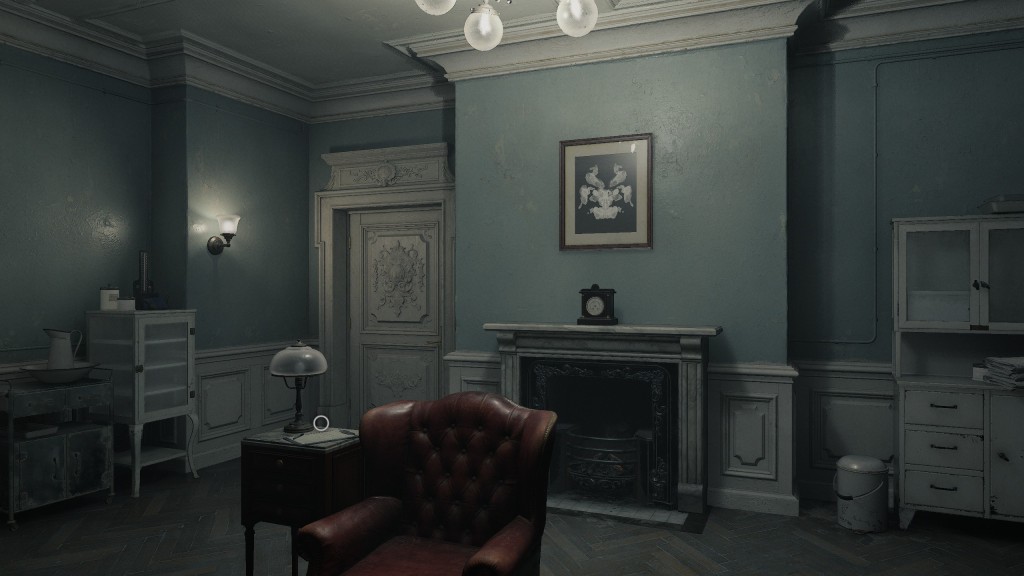
RE Requiem Graphics Overhaul: How to Disable Film Grain & Boost Image Scaling
Since these settings are currently locked within the in-game UI, this guide provides a verified technical workaround via the configuration files to achieve a crisp, high-fidelity experience.
Technical Disclaimer: Modifying configuration files (
.inior.cfg) is a standard practice for PC optimization. However, always create a backup of your original file before making changes. Perform these steps at your own discretion.
Part 1: Manual Configuration File Tweak
The most effective way to bypass engine-level post-processing is by editing the local config file.
Step 1: Locate the Game Directory
Navigate to your steam installation folder. By default, this is located at:
C:\Program Files (x86)\Steam\steamapps\common\RESIDENT EVIL requiem
- Pro Tip: If you have installed the game on a secondary drive (e.g., your
E:drive), your path will look like this:E:\SteamLibrary\steamapps\common\RESIDENT EVIL requiem.
Step 2: Access the Config File
- Inside the game folder, look for a file named
config.ini(it may simply appear asconfig). - Right-click the file and select Open with > Notepad.
Step 3: Edit Visual Parameters
Use Ctrl + F to find the following lines and update them as shown:
| Setting | Original Value | New Value | Effect |
| FilmGrainEnable | True |
False |
Removes the “static” noise filter from the image. |
| ImageQualityRate | 5 |
15 |
Increases the internal rendering resolution scale. |
Step 4: Save and Verify
- Click File > Save.
- Close the Notepad.
- Optional: Right-click
config.ini, go to Properties, and check Read-only. This prevents the game from overriding your custom settings when you launch it.
Part 2: Recommended In-Game Settings
To further enhance clarity and remove the “smearing” effect often found in RE Engine titles, adjust these settings within the in-game menu:
- Lens Distortion: Set to Off. This removes the “fish-eye” warp at the edges of the screen.
- Anti-aliasing: If you find the game too blurry, switch from TAA to FXAA or Off
Note: Disabling AA will make edges “jagged,” but the textures will appear significantly sharper.
Part 3: Alternative Solutions (Community Mods)
If you prefer an automated solution or deeper graphical overhauls, the modding community has already developed tools to address these issues.
- Nexus Mods: You can find community-made shaders and performance fixes at the Resident Evil Requiem Nexus Page.
- ReShade: Many players use “Lumasharpen” via ReShade to counteract the engine’s natural softness without a heavy performance hit.
Summary Checklist To Follow
- [ ] Back up your
config.ini. - [ ] Set
FilmGrainEnable=False. - [ ] Set
ImageQualityRate=15(ensure your GPU can handle the increased load). - [ ] Disable Lens Distortion in-game.
Last Updated on April 3, 2026

An avid listener of music from a number of countries. Writing is his hobby and passion. A follower of all the latest android and PC games. Not to mention his favorite: Mobile Legends!