
In order to fix the “binocular vision” and motion sickness in Resident Evil Requiem, you must use the RERFOVHOTFIX utility to implement a custom FOV. Download the mod and place the dinput8.dll file directly into your root game folder where the executable is located.
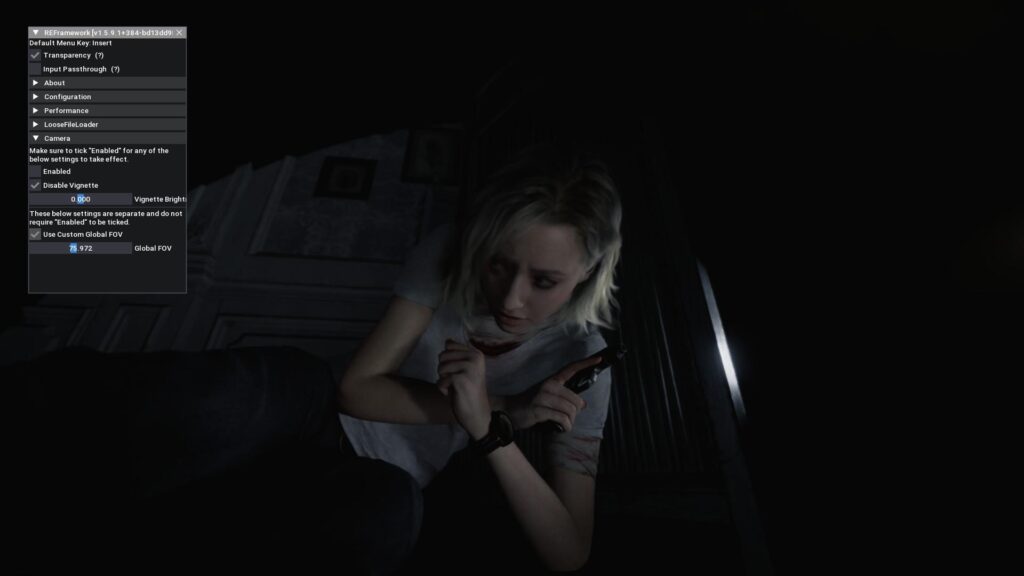
Once the game is running, press the Insert key to open the menu and toggle the “Use Custom Global FOV” setting. Setting your Global FOV to 75 provides the best optimization, offering a wider view while maintaining the game’s intended atmosphere and avoiding major visual bugs.
Installation & Troubleshooting Checklist
- File Placement: Ensure
dinput8.dllis in the same folder as the game’s.exe. - Controls: Use the Insert key to toggle the menu on and off during gameplay.
- Cutscenes: If you see character models clipping during cinematics, quickly disable the mod using the toggle key.
- Stability: If the game crashes at startup, delete
dinput8.dllto restore the game to its original state.
Resident Evil Requiem: The Definitive FOV Optimization Guide (2026)
This guide provides a verified, step-by-step method to implement a custom FOV using the RERFOVHOTFIX utility.
Note: As of March 12, 2026, this method is confirmed working and does not disable Steam Achievements.
⚠️ Essential Pre-Installation Warning
Before modifying your game files, please be aware of the following:
- Visual Spoilers: The mod’s main page on Nexus Mods contains screenshots of late-game story moments.
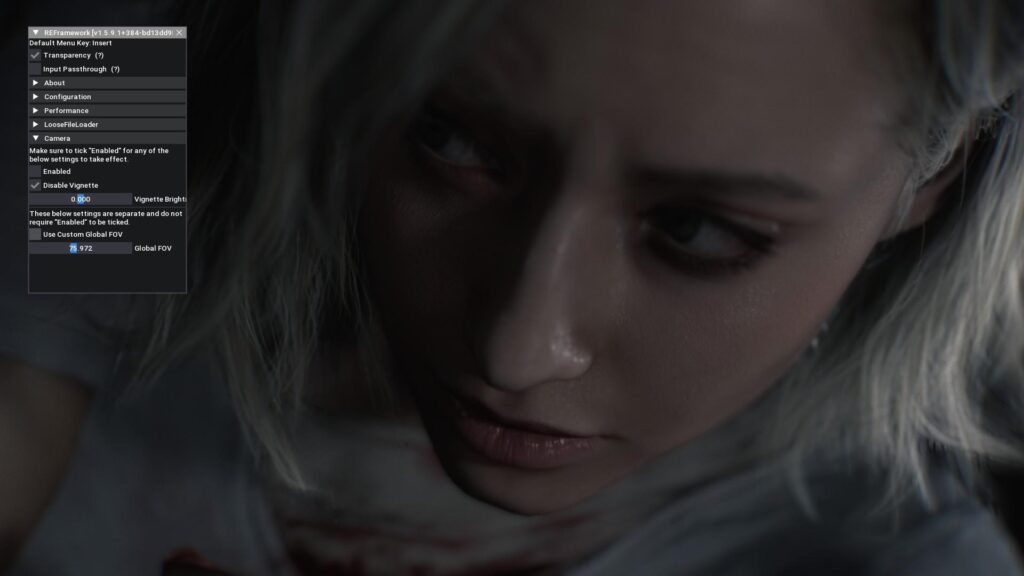
- Immersion Breaks: High FOV values can cause “camera clipping” during scripted sequences.
- Stability: If the game crashes, your first troubleshooting step should be removing the
dinput8.dllfile.
🛠 Step 1: Download & Installation
To begin, ensure the game is completely closed.
- Download the Utility: Acquire
RERFOVHOTFIXbyBlueCookieWookie.rarfrom Nexus Mods. (Account required). - Extract Files: Open the archive and locate the file named
dinput8.dll. - Directory Placement: Move
dinput8.dllinto your root game folder. The standard path is:
Steam\steamapps\common\RESIDENT EVIL requiem
Verify the folder contains the game’s executable (.exe) before pasting.
⚙️ Step 2: Configuration & Recommended Settings
The mod uses an injection-based overlay. Follow these steps for the best visual balance:
- Launch & Load: Start the game and load a manual save (this allows you to see the FOV changes in real-time).
- Open the Menu: Look for the overlay in the top-left corner. If it isn’t visible, press the Insert key.
- Apply Settings: * Navigate to the Camera tab.
-
- Toggle “Use Custom Global FOV” to ON.
- Adjust the “Global FOV” slider.
- The “Sweet Spot”: While subjective, a value of 75 is highly recommended to increase peripheral vision without causing heavy fish-eye distortion.
- Close Overlay: Press Insert to hide the menu and return to gameplay.
🐛 Known Issues & Workarounds (The “Bugs” Tab)
Using a custom FOV in a game designed for a fixed perspective introduces minor technical hitches. Use the Insert key to quickly toggle the mod off if you encounter these:
| Issue | Description | Workaround |
| Cutscene Clipping | The camera may pull back too far, revealing unrendered character models. | Disable mod (Insert key) during cinematics. |
| Icon Misalignment | Interaction icons (items/doors) may appear shifted to the side. | Icons realign as you get closer to the object. |
| Interaction Priority | If two items are on screen, the game may struggle to “focus” on the correct one. | Pan the camera so only one item is visible. |
| Lighting Glares | Intense “bloom” or glare can appear on certain interactable objects. | Momentarily disable the mod to see the item clearly. |
Summary
By following this method, you can significantly improve the ergonomics of Resident Evil Requiem. Just remember that the game’s atmosphere relies on tension; set your FOV too high, and you may lose that intended sense of claustrophobia.
Last Updated on March 13, 2026

An avid listener of music from a number of countries. Writing is his hobby and passion. A follower of all the latest android and PC games. Not to mention his favorite: Mobile Legends!