
Forza Horizon 6 delivers one of the most breathtaking open-world driving experiences in gaming history. But if you are playing on PC or Linux, you might feel like you are missing out on that next-level tactile immersion—specifically, the dynamic resistance and grit of PlayStation 5 DualSense adaptive triggers.
How to Unlock Next-Gen PS5 Trigger Support in Forza Horizon 6 (PC & Linux)
While the game supports basic rumble out of the box, a brilliant community tool called HorizonHaptics bridges the gap. By tapping directly into the game’s live physics engine, HorizonHaptics translates real-time telemetry data into authentic trigger resistance, ABS pulses, and gear-shift jolts.
Here is your complete guide to setting up HorizonHaptics and transforming your driving experience on both Windows and Linux.
Why Use HorizonHaptics?
Standard controllers give you generic vibrations. HorizonHaptics, however, reads live telemetry data directly from Forza Horizon 6’s physics engine. This means your DualSense R2 and L2 triggers will physically react to the car’s behavior:
-
ABS Pulses: Feel the brake trigger stutter and pulse when your tires lock up.
-
Traction & Resistance: Experience heavy trigger resistance when accelerating a heavy muscle car, or a loose, spinning sensation when losing grip on dirt roads.
-
Gear Shift Bursts: Feel a sharp tactile snap the exact millisecond you slam into a new gear.
-
Collision Jolts: Massive impacts send distinct, localized resistance shocks through your fingers.
Prerequisites & Requirements
Before diving into the setup, ensure you have the following ready:
-
The Game: A PC copy of Forza Horizon 6.
-
The Hardware: A PS5 DualSense or DualSense Edge controller.
-
Note: A USB wired connection is highly recommended for the best latency and full haptic bandwidth, though Bluetooth is supported.
-
-
Internet Connection: Required for the very first launch to download automatic dependencies.
Step 1: Download the Software
-
Head over to the official GitHub repository for the project.
-
Navigate to the Releases page and download the latest version of
HorizonHaptics.zip. -
Extract the
.zipfile to a folder anywhere on your computer (e.g., your Desktop or Documents folder).
Step 2: Running the App (Platform Guide)
Depending on your operating system, follow the respective instructions below to initialize the software.
Option A: Windows Setup
-
Open the extracted folder and double-click
run.bat. -
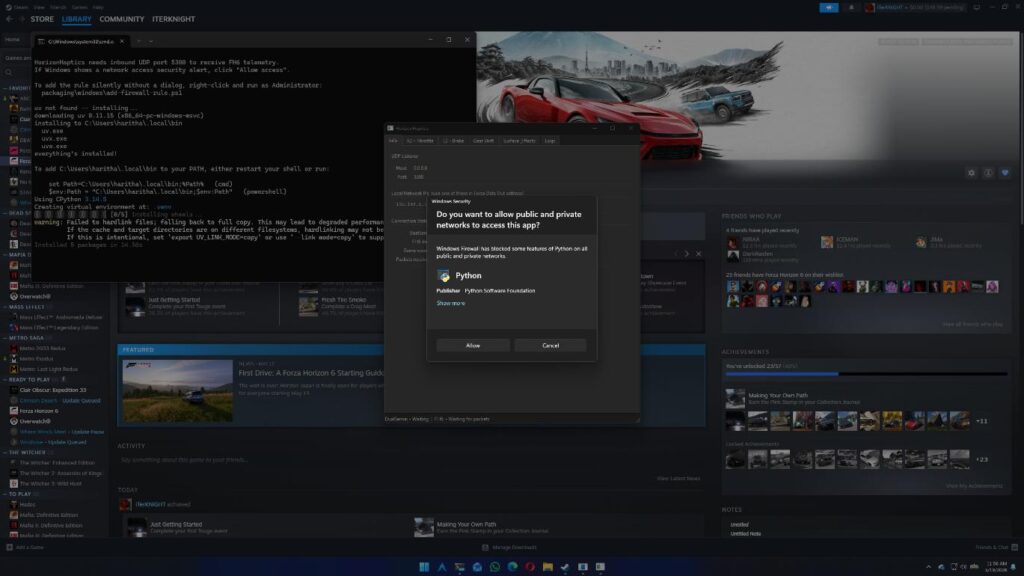
The application will open a command window and automatically install all necessary backend dependencies on this first run.
-
If a Windows Firewall alert pops up, click Allow access. This is crucial, as the app needs to listen to network data sent by the game.
Option B: Linux Setup
-
Open a terminal window inside the extracted HorizonHaptics folder.
-
Execute the startup script by typing:
./run.sh -
The script will ask if you want to install DualSense udev rules. Press
Y(Yes). This allows the application to communicate with your controller without needing root (sudo) privileges. -
Once the rules are installed, unplug your DualSense controller and plug it back in.
Step 3: Configure Forza Horizon 6 “Data Out”
To make the magic happen, we need to tell Forza Horizon 6 to broadcast its live physics data directly to HorizonHaptics.
-
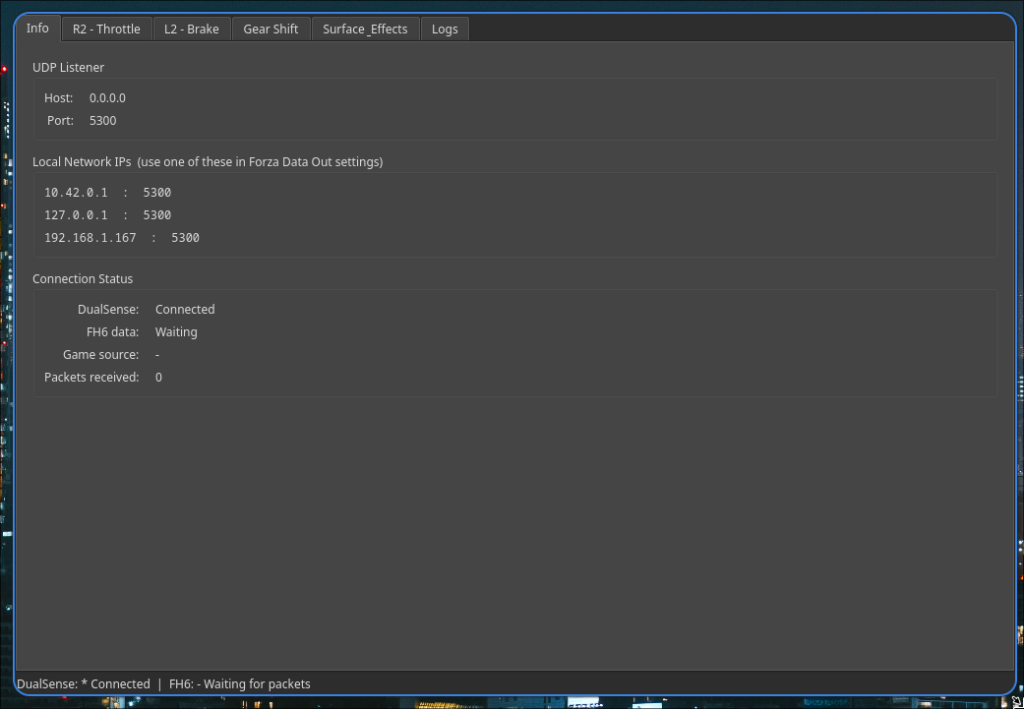
Launch HorizonHaptics and click on the Info tab. Take note of the IP addresses listed there.
-
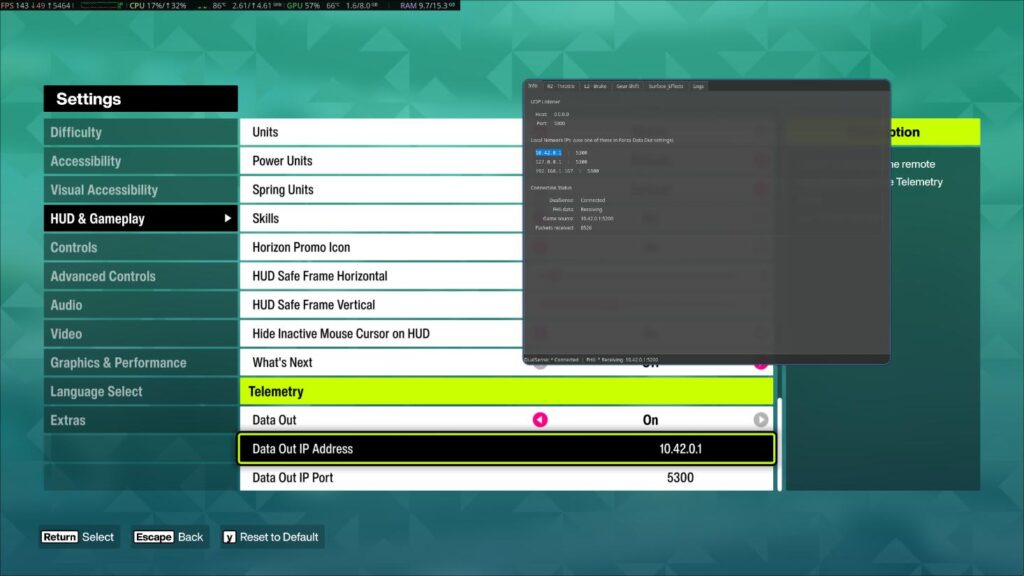
Launch Forza Horizon 6 and navigate to: Settings -> HUD and Gameplay.
-
Scroll down to the bottom to find the Data Out settings and configure them as follows:
-
Data Out: ON
-
Data Out IP Address: Enter the IP address from the HorizonHaptics Info tab.
-
Pro Tip: If Forza and HorizonHaptics are running on the exact same PC, simply use
127.0.0.1.
-
-
Data Out Port:
5300
-
[Forza Horizon 6 Physics Engine]
       │ (Telemetry Data via UDP Port 5300)
       ▼
[HorizonHaptics App]
       │ (Translates data into haptic profiles)
       ▼
[PS5 DualSense Controller] -> Real-time trigger resistance & ABS pulses
Once you enter a race or start free-roaming, check the HorizonHaptics application window. The status bar at the bottom should switch to FH6: Receiving.
Fine-Tuning Your Experience
Don’t just settle for the default settings. Open up the HorizonHaptics interface and look at the L2 (Braking) and R2 (Acceleration) tabs.
Here you can customize how heavy the triggers feel. If the resistance feels too stiff for casual driving, or if you want aggressive ABS feedback for competitive racing, adjust the Intensity slider. Just ensure that the Mode is not set to “Off” and the slider is tuned above 0.
Troubleshooting Common Issues
If things aren’t working smoothly, don’t panic. Here are the quick fixes for the most common hiccups:
Controller Not Detected?
-
On Windows: Third-party controller software like DS4Windows, DualSenseX, or Steam Big Picture mode can hijack the controller’s direct input. Close these programs completely, unplug your controller, and plug it back in. If it still fails, right-click
run.batand select Run as Administrator. -
On Linux: Re-run
./run.shand ensure you successfully installed theudevrules. Remember to unplug and replug the controller afterward to apply the new system permissions.
“Receiving” Status Not Showing / No Packets Arriving
-
This is almost always a firewall issue blocking UDP port 5300.
-
On Windows: Go to the extracted folder, navigate to
packaging\windows\, right-click onadd-firewall-rule.ps1, and select Run with PowerShell. This will automatically whitelist the port for you.
Telemetry is Connected, But Triggers are Dead
-
Open the HorizonHaptics app and check the R2 and L2 tabs.
-
Verify that the Mode isn’t accidentally set to Off, and make sure the Intensity slider is pushed up to a noticeable level.
Conclusion
By utilizing the DualSense’s best features on PC and Linux, HorizonHaptics turns Forza Horizon 6 into an incredibly tactile simulator-lite experience. Feeling the exact moment your tires lose grip through your fingertips completely changes how you tackle tight corners and unpredictable terrain.
Drop a comment below with your preferred intensity settings, and let us know what car feels the best with adaptive triggers activated! Happy driving!
Last Updated on June 18, 2026

An avid listener of music from a number of countries. Writing is his hobby and passion. A follower of all the latest android and PC games. Not to mention his favorite: Mobile Legends!