
If you are playing Battlefield 6 on an OLED monitor, you might notice that while the game looks beautiful, it can be very difficult to see enemies. Many players report that the game looks washed out or oversaturated. This guide provides a step-by-step solution to improve contrast, fix shadow detail, and ensure enemies stand out clearly against the environment.
How to Improve BF6 Enemy Visibility on OLED Monitors
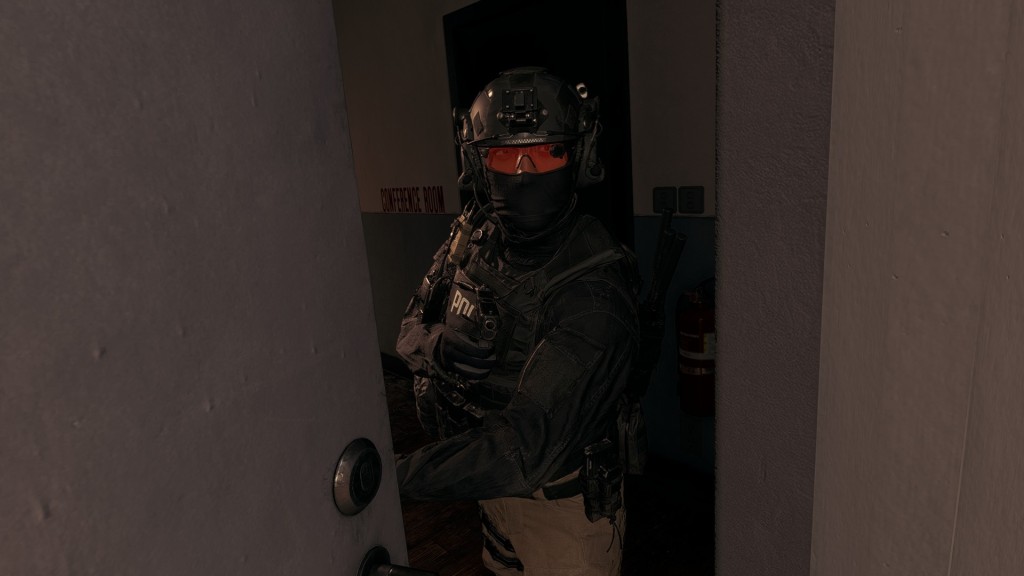
Why OLED Monitors Struggle with Battlefield 6 Visibility
OLED panels offer incredible colors and deep blacks, but the way Battlefield 6 handles HDR (High Dynamic Range) can cause problems. Common issues include:
- Washed-out colors: Scenes look grey or faded rather than sharp.
- Over-saturation: Colors look unnaturally bright, making it hard to track movement.
- Transition delays: Moving from a dark building to a bright outdoor area can result in a temporary “blinding” effect.
- Poor enemy visibility: Characters often blend into the background or the sky.
By following the steps below, you can bypass these issues and achieve a “meta” visibility setup similar to high-end console performance.
Step 1: Disable the In-Game SOVIS Filter
The first step is to remove an internal post-processing effect that affects contrast stability.
- Launch BF6.
- Navigate to the Settings menu.
- Select the HUD tab.
- Locate the SOVIS filter option.
- Set this to OFF.
Turning this off immediately stabilizes the contrast, making the image look more consistent during combat.
Step 2: Turn Off Windows HDR
While HDR makes cinematic games look great, it often hurts competitive visibility in shooters on OLED panels. Battlefield 6 currently struggles to balance brightness and clarity with Windows HDR enabled.
- Right-click on your Desktop and select Display Settings.
- Scroll down to the HDR section.
- Toggle Use HDR to OFF.
Note: Disabling HDR prevents the “washed out” look that many OLED users experience in the game’s current state.
Step 3: Adjust AMD GPU Pixel Format
If you are using an AMD graphics card, this is one of the most important steps. This change mimics the visibility settings used on consoles like the PS5, which often handle OLED black levels more effectively.
- Open the AMD Adrenalin software.
- Go to Settings (the gear icon) and select the Display tab.
- Locate the Pixel Format setting.
- Change the setting to: RGB 4:4:4 Pixel Format Studio (Limited RGB).
Changing to Limited RGB helps the monitor handle black levels and shadow details better, ensuring that enemies hiding in dark corners are easier to spot.
Step 4: Edit the PROFSAVE_profile File
This technical adjustment is the final piece of the visibility puzzle. It reduces excessive bloom and glare on bright maps.
- Navigate to the following folder on your computer:
C:\Users\YourName\Documents\Battlefield 6\settings\steam - Right-click the file named PROFSAVE_profile and open it with Notepad or any text editor.
- Use the search function (Ctrl + F) to find the line:
GstRender.Contrast - By default, this is set to
0.50000. This value causes high glare on sunny maps. - Change the value to
0.70. The line should now look like this: GstRender.Contrast 0.700000 - Save the file and close it.
The Final Result
After applying these changes, you will notice a significant boost in visual clarity. The combination of the Limited RGB setting and the 0.70 Contrast tweak ensures that:
- Enemies no longer “camouflage” against the bright sky or sun.
- Shadows remain clear without becoming pitch black.
- The overall brightness on sunny maps is reduced by roughly 70-90%, preventing eye strain and making movement easier to track.
By prioritizing visibility over cinematic effects, you gain a clear competitive advantage on your OLED display.
Last Updated on February 9, 2026

An avid listener of music from a number of countries. Writing is his hobby and passion. A follower of all the latest android and PC games. Not to mention his favorite: Mobile Legends!