
If you are jumping into the high-stakes world of ARC Raiders only to find your experience ruined by sudden freezes and network symbols popping up on your screen, you are not alone. Many players have reported significant microstutters where the game hangs for several seconds at a time.
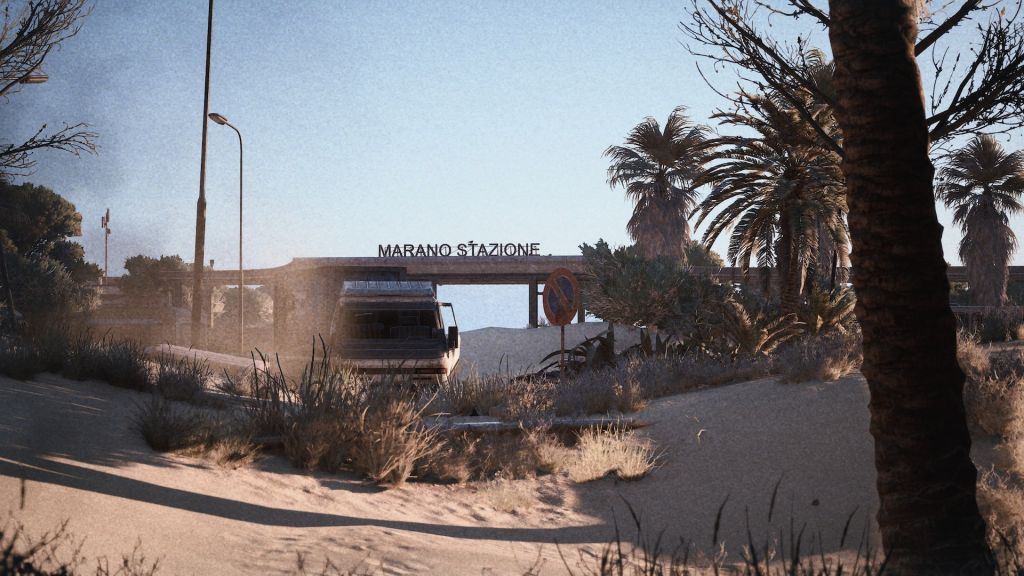
How to Fix ARC Raiders Freezing and Network Stuttering Issues
While the game might suggest certain settings for stability, players have discovered that the most effective solution is actually the opposite of what the in-game menus recommend. This guide will walk you through the primary fix and additional steps to optimize your performance.
The Primary Fix: Switch to Exclusive Fullscreen
The most successful solution for stopping microstutters in ARC Raiders involves changing how the game renders on your monitor. Even though the game may provide a warning message against it, switching your display mode is the top-rated fix.
Steps to take:
- Open the Settings menu in ARC Raiders.
- Navigate to the Video or Display tab.
- Locate the Window Mode setting.
- Change it from Borderless Windowed to Exclusive Fullscreen.
- Apply the changes and restart your match.
Many players using various hardware, ranging from high-end RTX 5080 cards to mid-range RTX 3060 setups, have reported that this single change eliminated freezes and “network disconnect” symbols that appeared during stutters.
Managing High CPU Usage and Bottlenecks
ARC Raiders is known to be a CPU-intensive game. If your game is stuttering and you notice your CPU usage is hitting 100% while your Graphics Card (GPU) is sitting at a low percentage, you are experiencing a CPU bottleneck.
To help balance the load and reduce stuttering caused by processor strain:
- Lower CPU-Heavy Settings: Look through the graphics menu for settings that specifically mention they impact CPU performance, such as physics, crowd density, or certain shadow settings.
- Increase GPU Load: Counter-intuitively, if your CPU is at 100% and your GPU is at 20%, you can try increasing some graphical settings (like resolution or textures) to shift more of the workload onto the video card.
- Background Apps: Close unnecessary programs like web browsers or heavy system monitors that might be eating up CPU cycles in the background.
Disable Overlays for Better Stability
External software that places an “overlay” on top of your game can often conflict with the game engine, leading to hitching and frame drops. If the Fullscreen fix does not work, your next step should be disabling these tools.
| Overlay Type | How to Disable |
| Discord | Go to User Settings > Game Overlay > Toggle “Enable in-game overlay” to off. |
| Steam | Go to Settings > In-Game > Uncheck “Enable the Steam Overlay while in-game.” |
| NVIDIA/AMD | Disable the “In-Game Overlay” within the GeForce Experience or Adrenalin software. |
Summary Checklist for Smooth Gameplay
If you are still experiencing issues, run through this quick checklist to ensure your system is fully optimized for the hunt:
- Switch to Exclusive Fullscreen: This is the most important step.
- Disable Discord Overlay: Known to cause conflicts in the current build.
- Update Graphics Drivers: Ensure you are on the latest version for your specific card.
- Check CPU Temps: Since the game is CPU-heavy, ensure your processor isn’t slowing down due to overheating.
By ignoring the in-game warning and opting for Exclusive Fullscreen, you should see an immediate improvement in stability, allowing you to focus on the machines rather than the lag.
Last Updated on February 9, 2026

An avid listener of music from a number of countries. Writing is his hobby and passion. A follower of all the latest android and PC games. Not to mention his favorite: Mobile Legends!