
In this guide on FIFA 23 I will show you where are the Config files, save files, and screenshots located and how to access them.
Exact Path: Documents\FIFA 23\settings
Alternate Path: C:\Users\[Username]\Documents\FIFA 23
Steam Version: %USERPROFILE%\Documents\FIFA 23\settings
EA App Version (One Drive): C:\Users\Username\OneDrive\Documents\FIFA 23

Config, Save File, and Screenshots Location for FIFA 23
In order to open and access all of these files, follow the given path:
- Go to Your PC (or This PC for Windows 10 by default)
- Access Local Disk (C: for me)
- Users followed by the Username you are using for your system
- Go to Documents
- Open the FIFA 23 Folder
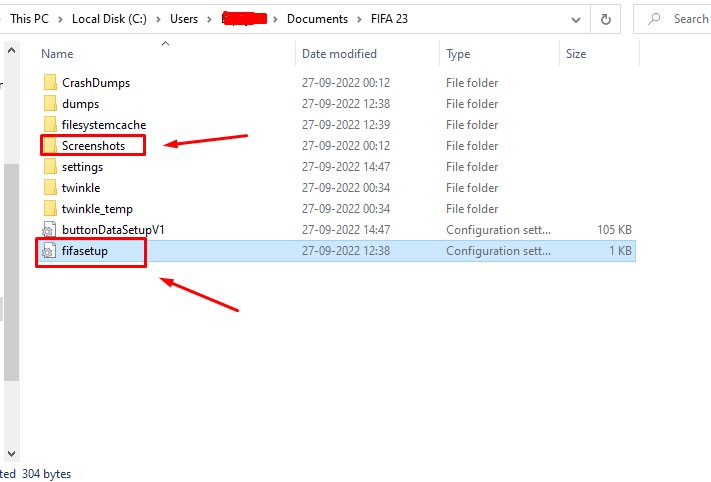
Once you are there, you should see two files you can easily access and overwrite to your liking. They are ButtonDataSetup V1 and fifasetup. You can open these two and change them as per your preference. Let us see what changes we can make to FIFA 23 from the config files:
- AUDIO_MIX_MODE = 0
- CONFIG_APP_LOCALE = en-US
- FULLSCREEN = 1
- MSAA_LEVEL = 0
- RENDERINGQUALITY = 3
- RESOLUTIONHEIGHT = 1440
- RESOLUTIONWIDTH = 2560
- VOICECHAT = 1
- WAITFORVSYNC = 0
- WINDOWED_BORDERLESS = 0
- STRAND_BASED_HAIR = -1
- USE_GOAL_NETS_3D = -1
- DYNAMIC_RESOLUTION = 0
- WINDOWTITLE = “FIFA 23”
These are my default Config files settings for FIFA 23. As you can see above, you can disable or enable Goal Nets, and Make FIFA 23 Borderless by setting the value to 1. Change the MSAA Level for the game and do much more that you cannot do from inside the game. I personally do not use this setting, but I am sure some of you out there would want to know.
As you can see from the first image I used, the “Screenshots” folder is also located in the same directory. You can easily access your images from here if you have decided to use the in-game screen capture feature any chance.
Words of Caution
These are some tips I want to share so that you do not mess up the game from your end. Always take a backup of the original fifasetup files before making any changes to the game. Set the game to read and write only to make the changes, then toggle read-only again.
This will ensure that your file is safe and cannot be overridden or overwritten. If these changes cause any issues to your game, kindly restore the original files and you should be good to go!
If you face any issues during or after the changes or have any questions, make sure to let me know via the comments below. Stay posted on the website for more FIFA 23 content. Thanks for reading and I will see you in the next guide!
Adios!
Last Updated on February 19, 2026

A computer science graduate by qualification, Zoid loves to keep himself updated with the latest gaming content related to PC, Android, and other platforms as well. Likes to keep his diet and health in check from time to time!
i like this game