
While Crimson Desert (launched March 2026) is a visual powerhouse, it is notoriously heavy on both CPU and VRAM. This guide provides a verified path to a stable 60 FPS experience on mid-range AMD setups by balancing BIOS-level efficiency with modern upscaling mods.
A Crimson Desert Stability Guide for AMD Radeon Users

CPU Optimization: Managing Thermal Throttling
The Ryzen 5 5600 can hit 90°C+ in the dense forests of Pywel. Using PBO (Precision Boost Overdrive) Curve Optimizer allows the chip to run faster at lower voltages, reducing heat without sacrificing clock speeds.
The “Undervolt” Workflow
- Enter BIOS: Restart and tap
DELorF2. - Navigate to Advanced Mode: Look for Settings > AMD Overclocking > Precision Boost Overdrive.
- Set PBO to Advanced: This unlocks the Curve Optimizer.
- Apply Negative Offset:
-
- Set Curve Optimizer to Negative.
- Magnitude: Start at 5 (effectively -5).
- Expert Note: Most 5600 chips are stable up to -15 or -20. If your PC doesn’t crash, gradually increase this number to further drop temps.
Result: Expect a drop from ~93°C to ~75°C, maintaining consistent boost clocks and preventing stuttering.

GPU & Software: The “FSR 4.0” Mod
Official support for FSR 4.0 was a major milestone for RDNA 2/3 users in early 2026. If your version still shows 3.1, you can manually inject the improved FSR 4.0 DLL for superior anti-aliasing and less “shimmering.”
Installation Steps:
- Backup: Go to your game folder
\Bin64\. - Rename: Change
amd_fidelityfx_upscaler_dx12.dlltoamd_fidelityfx_upscaler_dx12.dll.old. - Inject: Drop the downloaded FSR 4.0 replacement file into the folder.
- In-Game: Select FSR 4.0 (it will replace the 3.1 entry).
Adrenalin Software Settings:
To ensure the smoothest frame pacing, use the driver to cap your performance rather than in-game V-Sync:
- Frame Rate Target Control (FRTC): Set to 60 FPS (or your monitor’s refresh rate).
- Radeon Anti-Lag: Enabled (Essential when using a frame cap to minimize input latency).
- Tuning: Leave on Default. Crimson Desert is sensitive to GPU overclocking; stock stability is preferred over a 2% power gain.
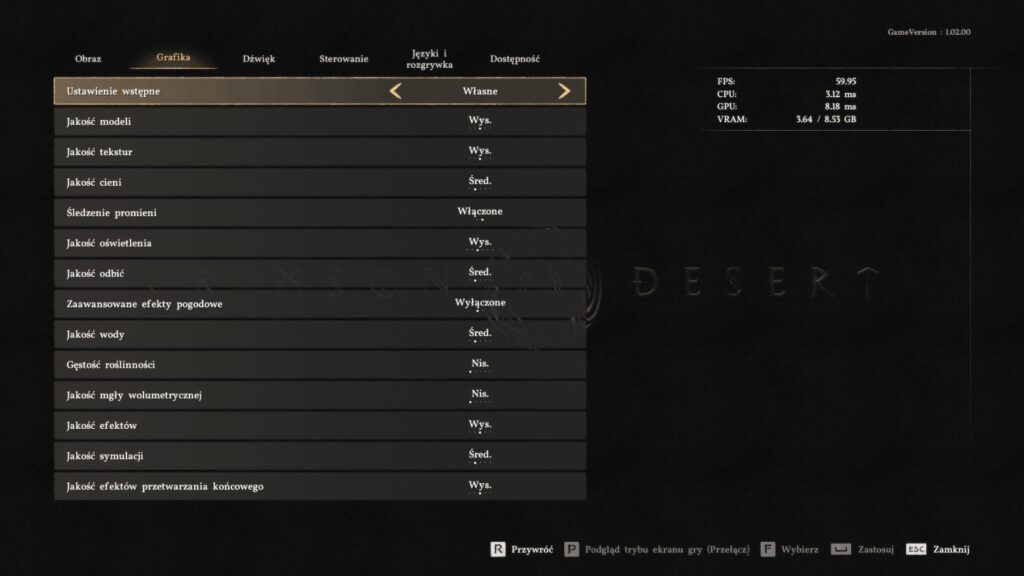
Optimized In-Game Settings
Based on the 8GB VRAM limit of the RX 7600, these settings prevent memory overflow while keeping the “next-gen” look.
| Setting | Recommended Value | Why? |
| Upscale Mode | FSR 4.0 Quality | Native 1080p is too heavy; Quality preset is sharp. |
| Frame Gen | OFF | Adds latency and artifacts if base FPS is below 60. |
| Lighting Quality | Ultra | Crucial: Shadows/lighting look broken below Ultra. |
| Ray Tracing | ON | On AMD, the cost is low if Lighting is at Ultra/High. |
| Shadows/Reflections | Medium | Saves significant VRAM and GPU cycles. |
| Foliage/Fog | Low | These are the biggest “FPS Killers” in open fields. |
| V-Sync | OFF | Handled by Adrenalin/FRTC for better latency. |

Trust & Reality Check
- VRAM Warning: The RX 7600’s 8GB is the “bottleneck” here. If you notice sudden stutters after an hour of play, restart the game to clear the cache.
- Patch Status: As of Patch 1.02.00, performance has improved, but “dense city” areas will still see drops to the high 40s.
- Visuals: Some blurriness is inherent to FSR at 1080p. If the image is too soft, use Radeon Image Sharpening (RIS) in Adrenalin at 20-30%.
Expert Tip: If you absolutely need a locked 60 FPS, change FSR from “Quality” to “Balanced.” The visual trade-off is noticeable, but it provides the headroom needed for combat-heavy zones.
Last Updated on April 18, 2026

An avid listener of music from a number of countries. Writing is his hobby and passion. A follower of all the latest android and PC games. Not to mention his favorite: Mobile Legends!