
There is nothing worse than getting hyped for a session of underwater exploration in Subnautica 2, only to realize your group’s designated “host” is stuck at work, studying, or otherwise indisposed. In traditional multiplayer games, your shared world is trapped on their hard drive—meaning if they can’t play, nobody can play.
Subnautica 2 Multiplayer: How to Transfer and Sync Save Files
Thankfully, Subnautica 2 offers a brilliant workaround to this modern gaming tragedy. You don’t have to wait around or start a brand-new solo save.
This comprehensive guide will show you how to seamlessly transfer host duties among your crew using two methods: the built-in Cloud Key method and the automated SaveSync method.
Method 1: The Built-In Cloud Key Transfer (Manual)
If you don’t want to install any third-party tools, Subnautica 2 features an official, built-in cloud sharing system. It allows you to pass the world file back and forth like a digital baton.
Here is how to do it step-by-step:
Step 1: The Current Host Uploads the Save
- Open the main menu of Subnautica 2.
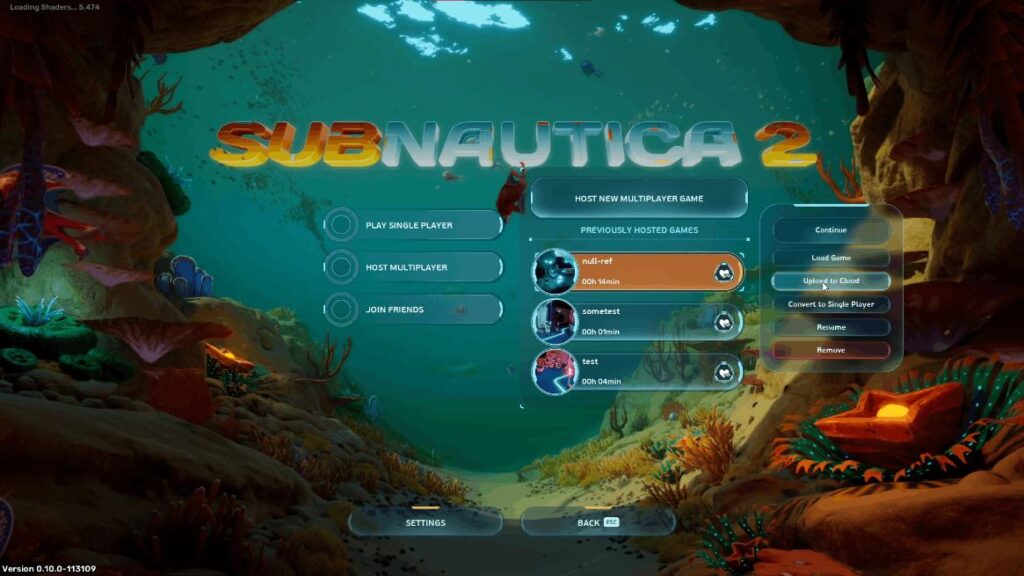
- Navigate to your multiplayer world, select the save file, and click the “Upload to Cloud” button.
- The game will generate a unique cloud key. Copy this key to your clipboard.
- Send this key to your friends via Discord, Steam chat, or whatever messaging app you use.
Step 2: The New Host Imports the Save
- The friend who wants to take over hosting duties opens their game.
- On the save selection screen, click on “Import Save”.
- Paste the cloud key into the text box and click “Confirm”.
⚠️ Important Multiplayer Protocol: This method requires strict communication. Because this process is manual, you must do this back-and-forth transfer every single time you finish a session. When the new host is done playing, they must upload a new key and send it back to the group so progress isn’t lost.
Method 2: The SaveSync App (Automated & Hands-Free)
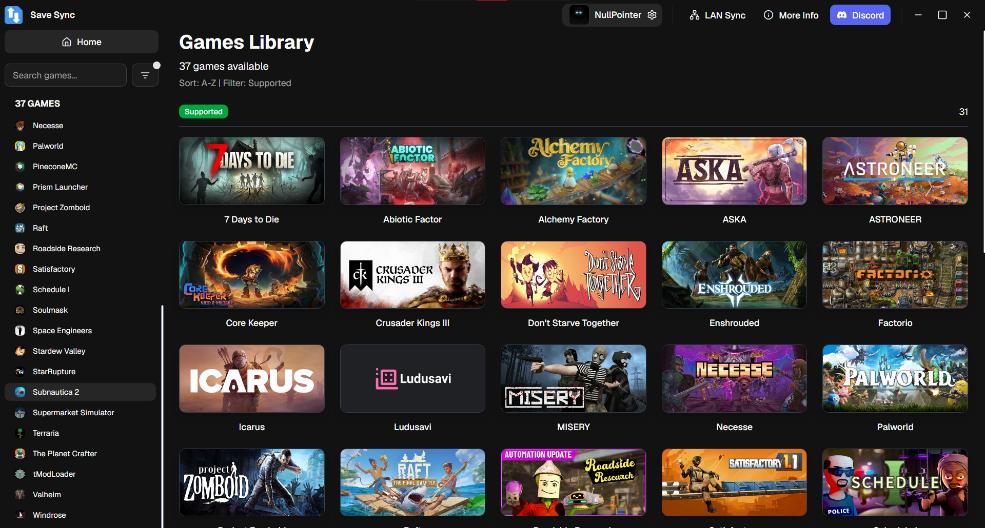
If the manual back-and-forth sounds like a recipe for accidentally overwriting progress, you should use SaveSync. This tool automates the entire cloud-sharing process, tracks your save history, and ensures everyone always has the most up-to-date version of Planet 4546B.
Here is how to set up SaveSync for Subnautica 2:
Step 1: Link Your World to SaveSync
- Open SaveSync and look at the game list on the left-hand sidebar.
- Click on Subnautica 2 to open its dedicated save management page.
- Click the “+ New Save” button located in the top-right corner.
- A dialog box will pop up displaying your available local saves. Select the multiplayer world you want to share.
- Click “Create Save”. The app will immediately begin syncing your world to the cloud. Wait until you see the green checkmark, indicating the upload is complete.
Step 2: Share the World with Your Crew
- Find your newly synced save in the SaveSync dashboard and click the Share icon.
- Search for your friend’s Steam username.
- Click the “Share” button.
[Your Save] ➔ [Click Share] ➔ [Type Steam Username] ➔ [Success!]
Step 3: Your Friend Activates the Save
- Your friend opens SaveSync on their PC. They will see the shared world prominently displayed in their game list, labeled as “Shared by [Your Username]”.
- All they need to do is click “Activate”.
And that’s it! The world is instantly downloaded to their local game directory. They can now boot up Subnautica 2, host the game, and start playing.
Why SaveSync is the Ultimate Choice for Co-op
While the manual cloud key method works in a pinch, SaveSync is highly recommended for long-term campaigns due to its safety features:
- Automatic Syncing: Once a save is activated, SaveSync automatically handles the uploads and downloads whenever someone finishes hosting. No manual keys required.
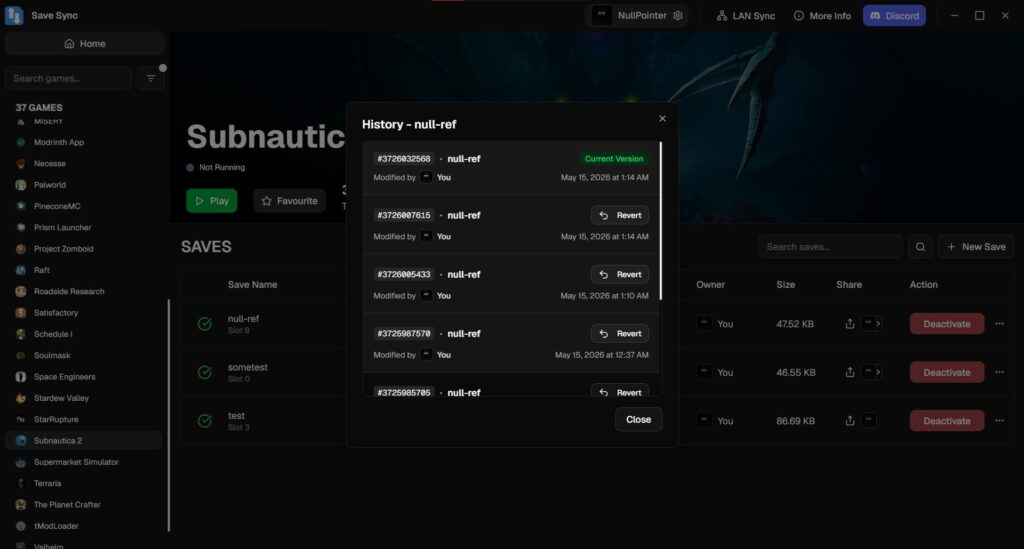
- Full Save History: It maintains a comprehensive log of your world. You can easily track who uploaded a save and when they did it.
- Accidental Loss Prevention: If a friend accidentally ruins your base or encounters a game-breaking glitch, SaveSync allows you to easily revert to any previous save state in the history log.
No more waiting around in the lobbies, and no more paused progression. Pick your method, share your world, and get back to exploring the deep blue!
Last Updated on May 25, 2026

An avid listener of music from a number of countries. Writing is his hobby and passion. A follower of all the latest android and PC games. Not to mention his favorite: Mobile Legends!