
There is nothing quite like diving into the beautiful, alien oceans of Subnautica 2 – until you try to look around and realize your camera feels floaty, sluggish, and completely inconsistent.
For some baffling reason, the developers didn’t include a simple toggle in the in-game settings menu to turn off mouse acceleration. Because of this, the game forces artificial smoothing onto your cursor, making precision aiming and quick scanning incredibly frustrating.
Subnautica 2 Mouse Acceleration Fix: A Step-by-Step Guide for Windows & Linux
Thankfully, the PC community has already found a workaround. By tweaking a few lines in your configuration files, you can bypass this issue completely and get proper, raw 1:1 mouse input. Here is exactly how to do it on both Windows and Linux (Steam Deck).
Why Is Mouse Acceleration Enabled By Default?
Mouse acceleration adjusts your cursor speed based on how fast you move your physical mouse, rather than how far you move it. While some players don’t mind it for casual navigation, it ruins muscle memory in first-person games.
As one frustrated player noted in the community forums:
“Did they genuinely work to implement motion blur, but not something super simplistic as… setting mouse acceleration?”
If you’ve already turned off “Enhance pointer precision” in your Windows Control Panel and noticed it didn’t fix Subnautica 2, that’s because the game’s engine (Unreal Engine) overrides your system settings. To fix it, we have to go straight to the source files.
How to Disable Mouse Acceleration on Windows
Fixing this issue takes less than two minutes. Just follow these simple steps:
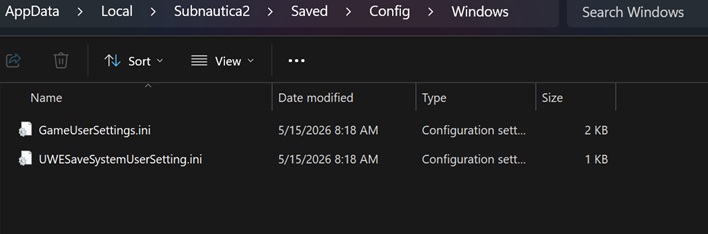
Step 1: Open the Config Folder
First, you need to locate where Subnautica 2 stores its local configuration files.
- Press
Windows Key + Ron your keyboard to open the Run dialog box. - Copy and paste the following path, replacing
[YourNameHere]with your actual Windows username:C:\Users\[YourNameHere]\AppData\Local\Subnautica2\Saved\Config\Windows - Hit Enter.
(Note: If you are manually clicking through folders and can’t see AppData, make sure you have “Hidden items” turned on in your Windows File Explorer view settings.)
Step 2: Open GameUserSettings.ini
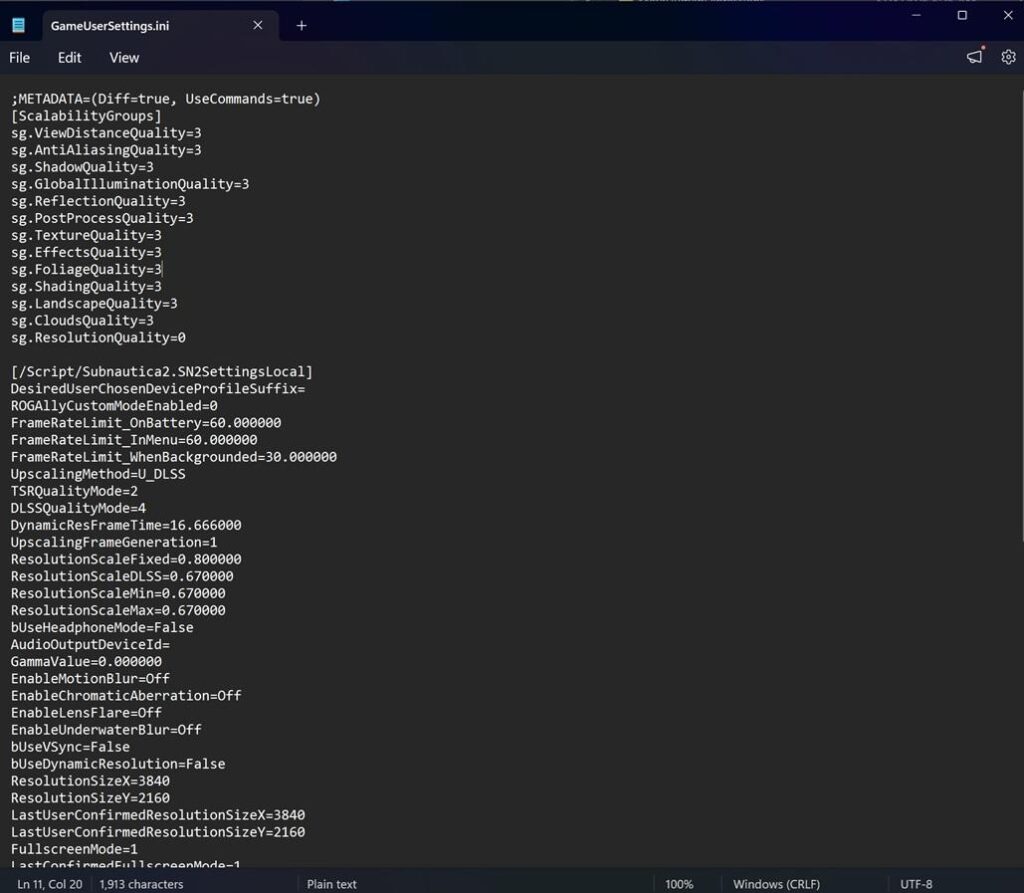
Inside the Windows folder, look for a file named GameUserSettings.ini.
- Right-click the file, select Open With, and choose Notepad (or any text editor of your choice, like Notepad++).
Step 3: Add the Raw Input Commands
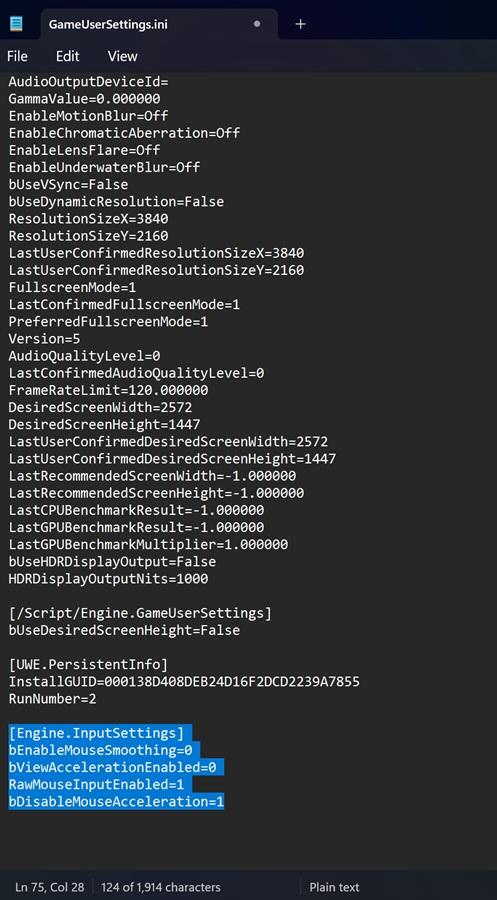
Scroll all the way down to the very bottom of the document. Click on a blank line at the end of the text and paste the following code block exactly as it is shown:
[Engine.InputSettings]
bEnableMouseSmoothing=0
bViewAccelerationEnabled=0
RawMouseInputEnabled=1
bDisableMouseAcceleration=1
These commands completely disable Unreal Engine’s built-in camera smoothing and force the game to read the direct, raw data coming from your mouse sensor.
Step 4: Save and Launch
- Press
CTRL + Son your keyboard to save your changes (or go to File > Save). - Close Notepad.
- Launch Subnautica 2.
Playing on Linux or Steam Deck? Here is the Fix
If you are playing Subnautica 2 on Linux or a Steam Deck via Proton compatibility, your file path will look a bit different. Thanks to community member KyrenCross, we have the exact directory path you need to track down.
Navigate through your Steam files to find the configuration folder here: ~/.local/share/Steam/steamapps/compatdata/1962700/pfx/drive_c/users/steamuser/AppData/Local/Subnautica2/Saved/Config/Windows
Once you locate the GameUserSettings.ini file inside that directory, follow Step 3 and Step 4 from the Windows guide above to paste the commands and save the file.
The Verdict: Instant Responsiveness
Once you boot back into the game, your camera movement should feel instantly snappier, sharper, and completely predictable. No more floaty lag when you are trying to outrun leviathans or scan fast-moving alien flora.
Ideally, the development team will address this oversight in an upcoming patch and add a proper toggle right into the gameplay settings menu. Until then, this quick file tweak will give you the flawless 1:1 aiming experience you deserve.
Enjoy exploring the deep blue with absolute control!
Last Updated on May 25, 2026

An avid listener of music from a number of countries. Writing is his hobby and passion. A follower of all the latest android and PC games. Not to mention his favorite: Mobile Legends!