
Subnautica 2 has finally entered Early Access, and while the alien oceans look more stunning than ever on Unreal Engine 5, that beauty comes at a steep cost to performance. If you are trying to explore the deep on a mid-range setup or a laptop, you might be greeted by brutal stuttering, lag, and frame rates floating somewhere around an unplayable 20 FPS.
Thankfully, you don’t have to wait for the developers to release a massive optimization patch. By tweaking a few vital in-game configurations and leveraging a “secret ingredient” hidden in the game’s back-end files, you can easily double your performance and achieve a stable, smooth 50–60 FPS.
Subnautica 2: Stuttering & Low FPS Fix Guide
Here is a complete, step-by-step guide to optimizing Subnautica 2 for maximum performance.
Part 1: Optimal In-Game Settings
Before messing with config files, start by locking down your baseline in-game menu settings. These adjustments ensure your hardware isn’t rendering unnecessary post-processing details.
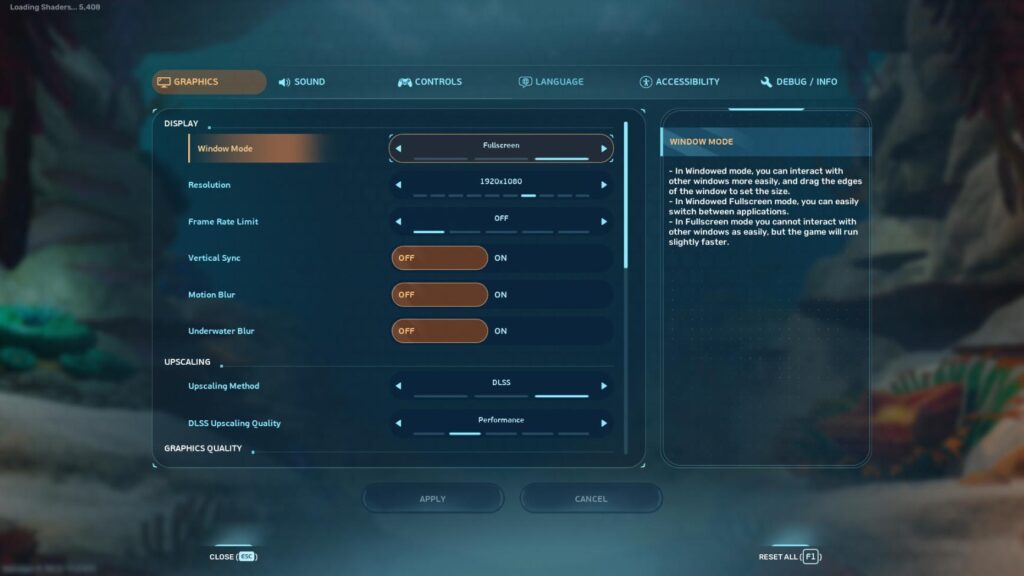
Video & Display Settings
- Window Mode: Fullscreen (Note: If you experience freezing or tearing, try Windowed Fullscreen, which performs better on certain laptop setups).
- Resolution: 1080p (Match your native monitor resolution, but avoid pushing to 14K or 4K on mid-range cards).
- V-Sync: On if you experience screen tearing; Off if you want maximum frame delivery.
- Motion Blur & Underwater Blur: Off (Disabling these clears up visibility and saves minor GPU cycles).
Upscaling Technologies
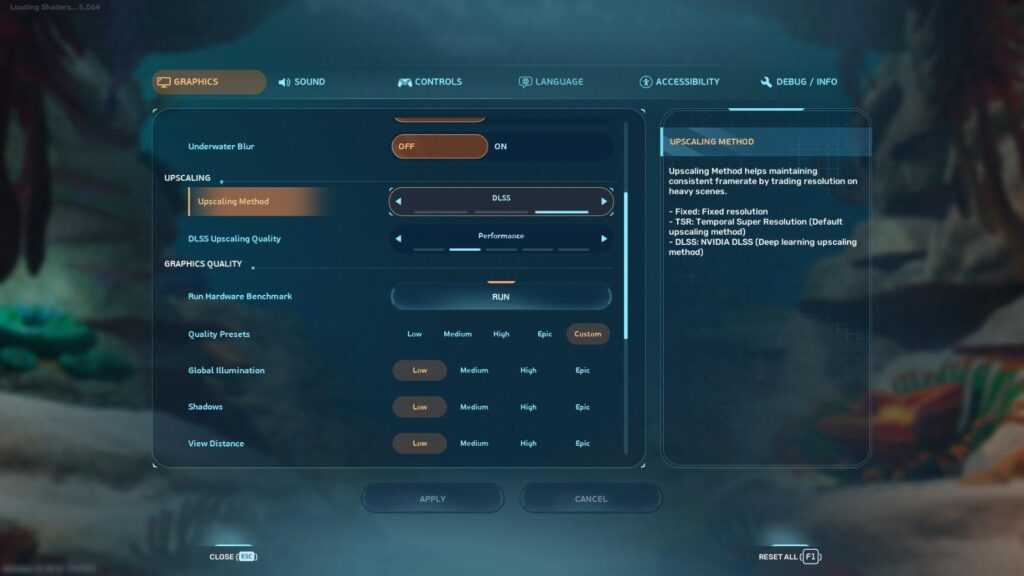
- For NVIDIA RTX Users: Set DLSS to Performance Mode.
- For Non-RTX/Intel Users: Use TSR (Temporal Super Resolution).
- Note: AMD FSR is not natively implemented yet, but is expected in a future update.
Advanced Graphics Settings
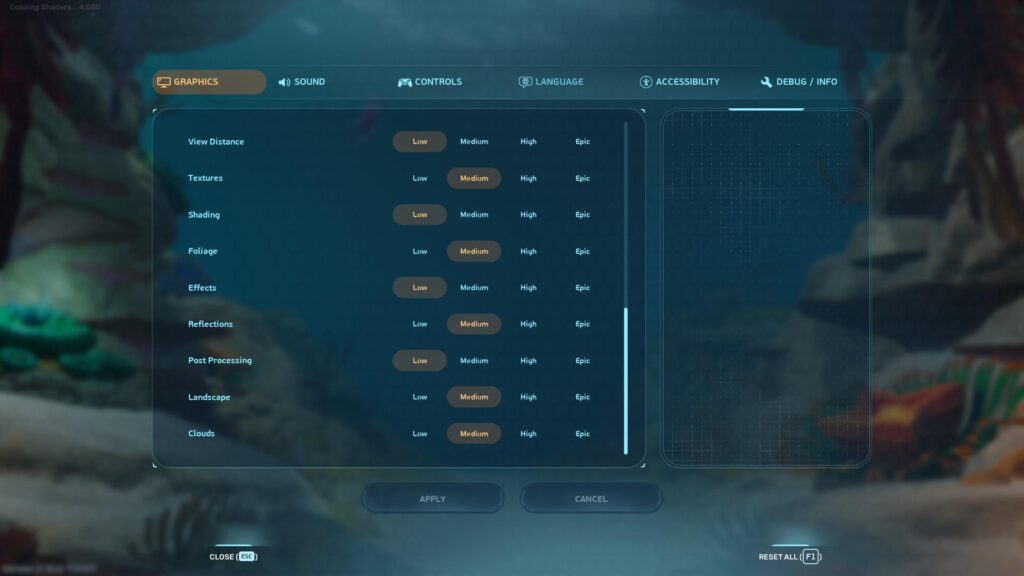
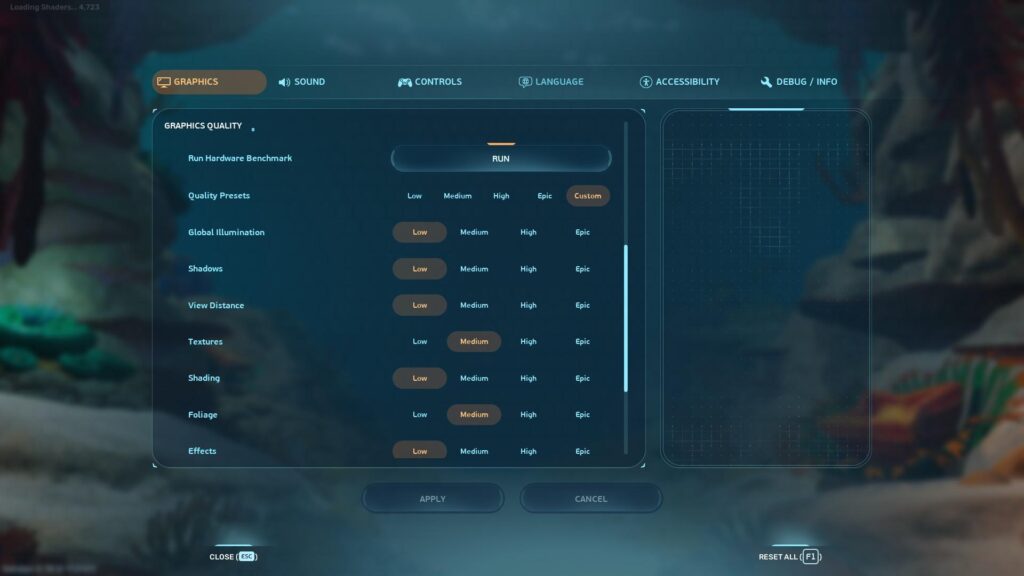
If your system is struggling, manually drop this specific mix of high-impact settings to Low or Medium:
- Global Illumination: Low (Massive performance saver)
- Shadows: Low
- View Distance: Medium
- Shading: Low
- Effects: Low
Part 2: The “Engine.ini” Secret Configuration File
The real breakthrough for boosting your frame rate involves a file called Engine.ini. This file controls core Unreal Engine 5 features—like heavy dynamic lighting systems and shadows—that cannot be turned off from the standard in-game menus.
Follow these steps exactly to apply the fix:
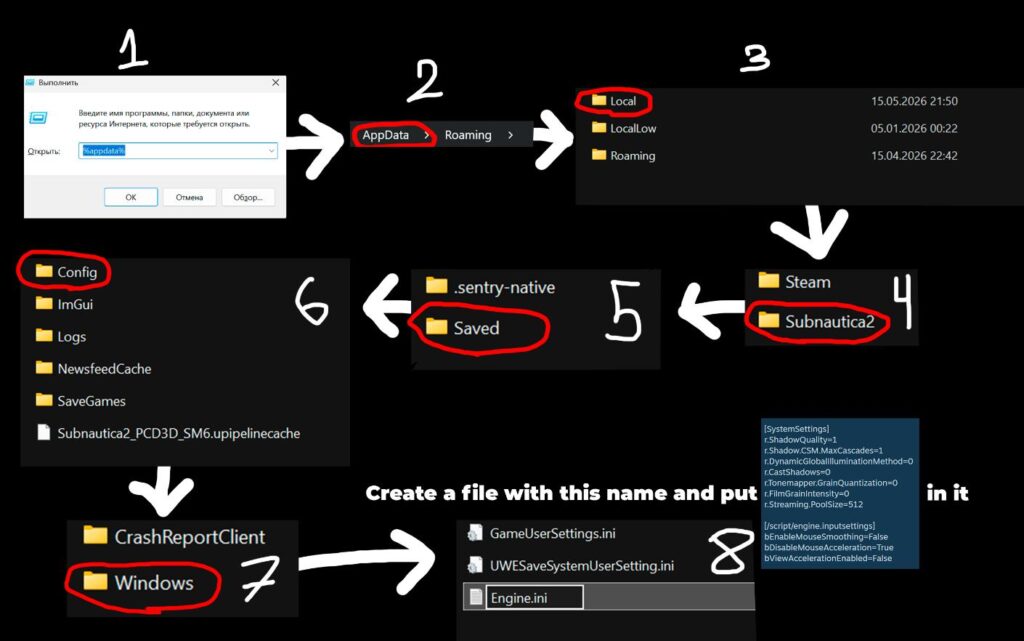
Step 1: Locate your Configuration Folder
- Press the Windows Key + R on your keyboard to open the Run dialogue box.
- Type %appdata% and hit Enter. This opens your Roaming folder.
- In the top address bar of your file explorer, click on AppData to go back one folder level.
- Open the Local folder.
- Scroll down to find and open the Subnautica2 folder.
- Navigate through: Saved > Config > Windows.
Step 2: Create and Populate the File
- Inside the Windows folder, right-click on an empty space, select New, and choose Text Document.
- Name the file exactly: Engine.ini (Make sure it ends in .ini and not .ini.txt).
- Open the file and paste the following baseline settings:
[SystemSettings]
r.ShadowQuality=1
r.Shadow.CSM.MaxCascades=1
r.DynamicGlobalIlluminationMethod=0
r.CastShadows=0
r.Tonemapper.GrainQuantization=0
r.FilmGrainIntensity=0
r.Streaming.PoolSize=512
[/script/engine.inputsettings]
bEnableMouseSmoothing=False
bDisableMouseAcceleration=True
bViewAccelerationEnabled=False
Save and close the file.
Step 3: Lock the File (Crucial)
If you skip this step, Subnautica 2 will overwrite or delete your custom file the moment you launch the game.
- Right-click your newly created Engine.ini file and select Properties.
- At the bottom of the General tab, check the box next to Read-only.
- Click Apply and then OK.
Part 3: Extreme Optimization Settings (For Low-End PCs)
If the baseline fix isn’t enough and you are desperate for more frames, you can swap out the text in your Engine.ini file for an aggressive, bare-minimum preset.
Warning: This will significantly degrade the game’s visuals, making lighting look flat and disabling premium graphical features like Lumen and Ray Tracing. Use these lines if you value raw performance over visual fidelity:
[SystemSettings]
; --- Ultra Extreme FPS Boost ---
r.ShadowQuality=0
r.Shadow.MaxResolution=64
r.Shadow.CSM.MaxCascades=1
r.CastShadows=0
r.Shadow.Virtual.Enable=0
; --- Post Processing & Resolution Scale ---
r.Tonemapper.GrainQuantization=0
r.FilmGrainIntensity=0
r.ScreenPercentage=75
r.Tonemapper.Sharpen=0
r.MaxFPS=60
t.MaxFPS=60
; --- Disable Heavy Post-Effects ---
r.PostProcessAAQuality=0
r.SceneColorFringeQuality=0
r.BloomQuality=0
r.LensFlareQuality=0
r.DepthOfFieldQuality=0
r.MotionBlurQuality=0
; --- Disable Ray Tracing & Advanced Lighting ---
r.RayTracing=0
r.RayTracing.Reflections=0
r.RayTracing.Shadows=0
r.RayTracing.AmbientOcclusion=0
r.ReflectionEnvironment=0
r.ReflectionCaptureResolution=0
r.AmbientOcclusionLevels=0
r.SSR.Quality=0
r.DynamicGlobalIlluminationMethod=0
r.Lumen.DiffuseIndirect.Allow=0
r.Lumen.Reflections.Allow=0
; --- Textures & Inputs ---
r.Streaming.Boost=0
r.Streaming.LimitPoolSizeToVRAM=0
r.Streaming.FramesForFullUpdate=1
[/script/engine.inputsettings]
bEnableMouseSmoothing=False
bDisableMouseAcceleration=True
bViewAccelerationEnabled=False
Known Bugs & Side Effects
Because these manual edits turn off parts of the game engine’s core rendering pipeline, you may encounter a few visual anomalies:
- Flickering Shadows: Because dynamic global illumination is forced off, shadows can sometimes flicker or visually pop out in tight, dimly lit spaces like caves, alien bases, or customized seabases.
- The Fix: If it breaks your immersion, uncheck “Read-only” on your file, open it up, and try changing r.ShadowQuality=0 to 1 or 2, then lock it again.
- Flat Visuals: Without ambient occlusion or Lumen, deep underwater trenches will look significantly brighter and less atmospheric than intended.
A Quick Reminder On Early Access
Always remember that Subnautica 2 is actively in development. Game optimization is usually the final major focus before a title hits 1.0 launch. Future updates will likely break these custom .ini files or render them completely obsolete as the developers implement native performance updates.
If your game ever acts up or fails to launch after a game patch, simply navigate back to your Windows folder, delete the Engine.ini file, and let the game recreate its default settings.
Last Updated on May 25, 2026

An avid listener of music from a number of countries. Writing is his hobby and passion. A follower of all the latest android and PC games. Not to mention his favorite: Mobile Legends!