
There is nothing worse than settling in for a high-speed session in Forza Horizon 6, hitting “Launch,” and being immediately slammed with an annoying error message: “Invalid Gaming Services Detected.”
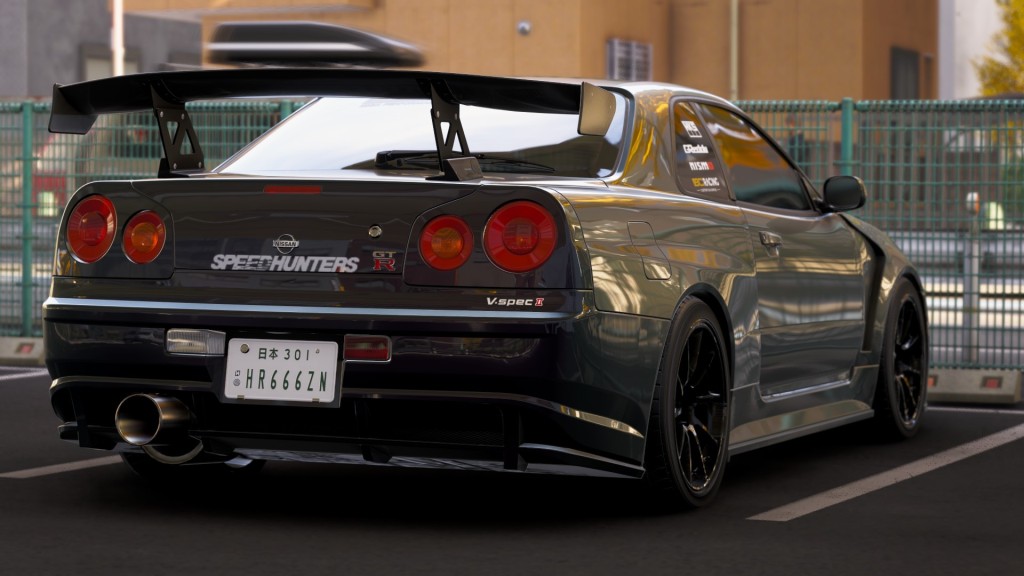
Forza Horizon 6: “Invalid Gaming Services Detected” Fix Guide
If you are staring at a warning telling you that your system is running an older version of Gaming Services, don’t panic. You aren’t locked out of the festival for good. This is a common issue affecting PC players across both the Xbox App and Steam versions of the game.
Fortunately, the fix is incredibly straightforward. Here is your step-by-step guide to updating your system and getting back on the asphalt.
Why is This Error Happening?
Forza Horizon 6 relies heavily on Microsoft’s backend infrastructure to handle matchmaking, cloud saves, and online multiplayer. To ensure everything runs smoothly and securely, the game requires a minimum baseline version of Windows Gaming Services.
The Golden Number: Your system must be running Gaming Services version 36.113.2002.0 or greater. If your version is even a digit older, the game will refuse to launch to protect your profile data.
How to Fix the “Invalid Game Services” Error
To resolve this issue, you simply need to force Windows to update the necessary background applications. Follow these steps:
Step 1: Force an Update via the Microsoft Store
-
Open the Microsoft Store on your Windows PC (Press the Windows Key, type “Store”, and hit Enter).
-
Look at the bottom-left corner of the Store app and click on Library (or Downloads).
-
Click the Get updates (or Check for updates) button in the top right of the screen.
-
Scroll through the list to find Gaming Services and click Update.
Note: If you only see an “Open” or “Installed” label next to Gaming Services, your Store might not be fetching the update correctly. If that happens, proceed to the alternative method below.
Alternative Method: Direct Download
If Gaming Services isn’t showing up in your updates list, you can force-install it by triggering the direct Microsoft Store link.
-
Copy and paste this official link into your browser to jump straight to the app page: Official Gaming Services Store Page
-
Click Get or Update directly from that page.
How to Verify Your Gaming Services Version
Want to double-check that the fix actually worked before launching the game again? You can easily verify your exact version number through your Windows settings:
-
Open your PC’s System Settings (Press Windows Key + I, or type “Settings” into your search bar).
-
Navigate to Apps on the left-hand menu, then click on Installed Apps.
-
In the “Search apps” bar, type Gaming Services.
-
Click the three dots (…) next to Gaming Services and select Advanced Options.
-
Scroll down to the Specifications section. You will see a version number listed.
| Required Version | Your Status | Action Needed |
| 36.113.2002.0 (or higher) | Match / Greater | You’re good to go! Launch the game. |
| Lower than 36.113.2002.0 | Mismatch | Restart the Microsoft Store and retry the update steps. |
Final Step: Restart and Play
Once you have verified that Gaming Services is updated to the correct version, it is highly recommended to restart your PC. This ensures that Windows registers the new background service completely.
After a quick reboot, fire up Steam or the Xbox App, launch Forza Horizon 6, and the Horizon Festival will be waiting for you—completely error-free. Safe driving!
Last Updated on June 18, 2026

An avid listener of music from a number of countries. Writing is his hobby and passion. A follower of all the latest android and PC games. Not to mention his favorite: Mobile Legends!