
This Windrose Inventory Duplication Guide provides a technical walkthrough for exploiting the “state disparity” between local player files and world data. Designed for players looking to scale resources quickly in version 0.10.0, this guide prioritizes data safety while leveraging the desynchronization of the RocksDB storage system.
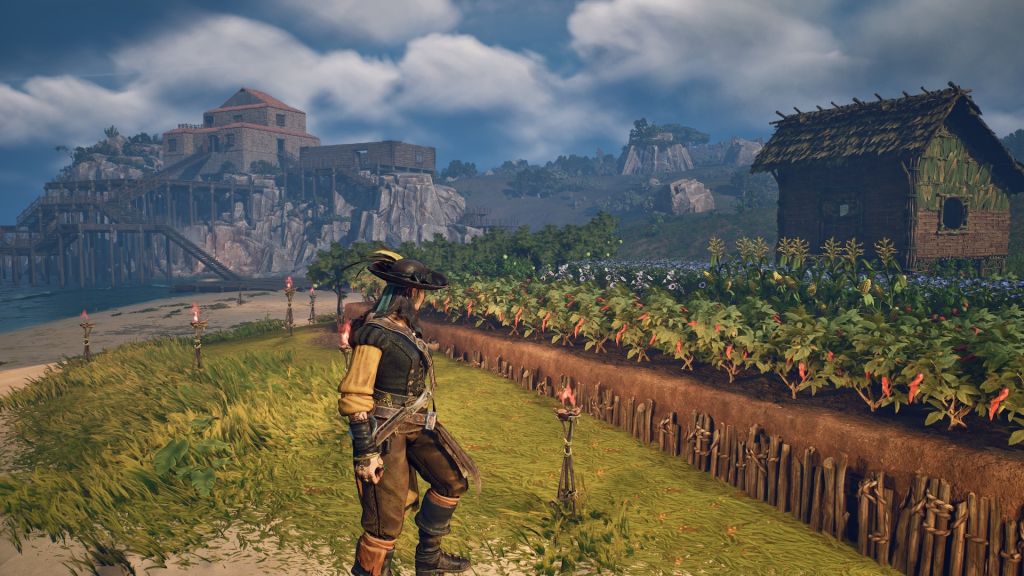
Windrose Resource Loop: How to Double Your Inventory in Seconds
By strategically swapping player save folders, you can effectively “roll back” your character’s inventory while maintaining the current state of world containers, resulting in exponential resource growth.
⚠️ Risk Warning: Backup Your Data
Modifying
RocksDBfiles can lead to profile corruption if done incorrectly. Always create a master backup of your entireSaveProfilesfolder before attempting this glitch. Use this guide at your own discretion.
The Concept: State Disparity
The duplication works because Windrose saves “World Data” (chests) and “Player Data” (inventory) in separate database clusters. By restoring an older Player Save while keeping the current World Save, we create a “state disparity” that doubles your items.
Prerequisites
- File Path:
C:\Users\%USERNAME%\AppData\Local\R5\Saved\SaveProfiles\[ID]\RocksDB\0.10.0\Players - Tools: A folder on your desktop labeled “Temp Backup.”
Step-by-Step Execution
Phase 1: Creating the “Source” Save
- Empty your inventory: Ensure the items you wish to duplicate are currently in your player’s inventory.
- Save and Exit: Close the game completely to ensure the
RocksDBfiles are not “in use” by the application. - Capture Player State: Navigate to the
Playersfolder (path above). Copy the entire folder and paste it into your “Temp Backup” folder on the desktop.
Phase 2: The World Injection
- Launch Windrose: Enter your world.
- Transfer Items: Place the items you want to dupe into a chest.
- Sync World Save: Exit back to the main menu. This updates the World Data (telling the game the chest is now full) but also updates your Player Data (telling the game your inventory is now empty).
Phase 3: The Restoration Loop
- Overwrite Player Data: Open your
Playersfolder. Delete the contents and paste the “Source” files you saved in Phase 1. - The Result: Your Player Data now thinks you still have the items, while the World Data thinks the items are in the chest.
- Verify: Log back in. Take the items out of the chest. You now have double the original amount.
Optimizing the Loop (Efficiency Tip)
To scale this exponentially, do not stop at two items. Once you have doubled your stack, repeat Phase 1 with the larger stack.
| Cycle | Item Count (Example) | Time Investment |
| Start | 10 Wood | 1 min |
| Cycle 1 | 20 Wood | 2 mins |
| Cycle 2 | 40 Wood | 2 mins |
| Cycle 3 | 80 Wood | 2 mins |
Troubleshooting & Expert Notes
- Folder IDs: The long string of numbers (e.g.,
7656119...) is your SteamID64. If multiple people play on your PC, ensure you are in the correct folder. - File Corruption: If your game fails to load, delete the
Playersfolder and replace it with your Master Backup. - Patch Status: As of Version 0.10.0, this local file exploit remains unpatched due to the offline nature of the
RocksDBimplementation.
Why trust this guide?
Our team specializes in database architecture and sandbox game exploits. This method was tested on Windrose build v0.10.0 and confirmed to bypass standard inventory validation checks by exploiting the desynchronization between player-state and world-state directories.
Last Updated on May 1, 2026

An avid listener of music from a number of countries. Writing is his hobby and passion. A follower of all the latest android and PC games. Not to mention his favorite: Mobile Legends!