
While the world of Windrose is immersive and addictive, many players have noticed a concerning side effect: excessive SSD write activity. Even after recent optimization patches, monitoring software reveals that the game continues to log small bits of data every single second.
Individually, these writes are tiny. Collectively? They represent unnecessary wear and tear that can prematurely age your drive. If you’re a dedicated player, those hours add up.
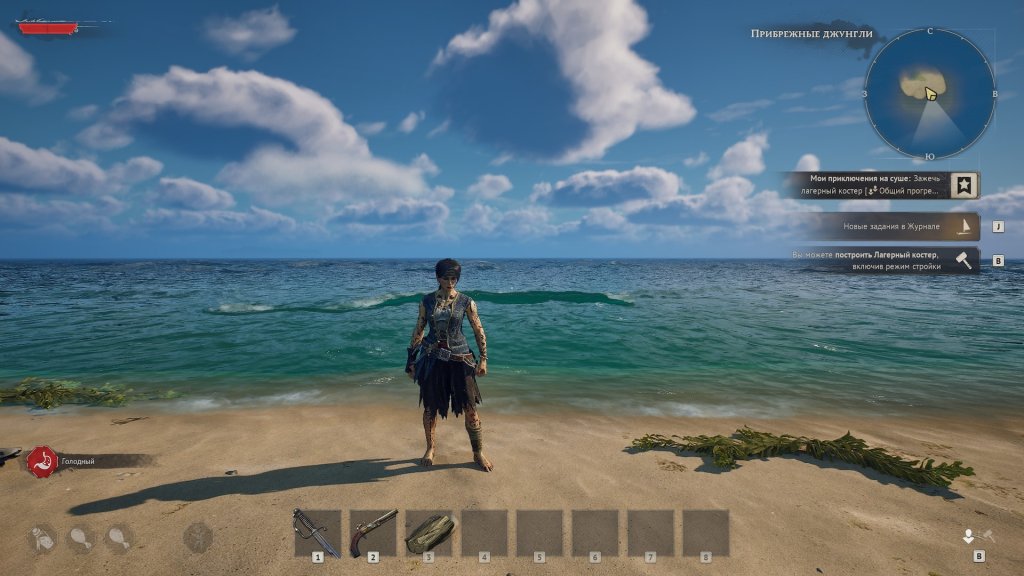
Is Windrose Wearing Out Your SSD? Here Is the Permanent Fix
Fortunately, there is a technical workaround—Directory Junctions. By “tricking” the game into writing these logs to a secondary drive (like an affordable HDD), you can preserve your primary SSD’s lifespan without affecting your save data.
The Strategy: Offloading the “Saved” Folder
The culprit is the game’s Saved folder. To fix this, we are going to move that folder to a different drive and create a “Junction Link.” This tells Windows: “When the game looks for its files here, actually send it over there.”
What You’ll Need:
- A Secondary Drive: Ideally an older External HDD. Since HDDs handle constant, small writes better than SSDs (and are much cheaper to replace), they are perfect for this.
- Administrative Privileges: You’ll need to run the Command Prompt as an Admin.
Step-by-Step Walkthrough
1. Locate and Backup
Before touching any files, safety first.
- Navigate to:
%LOCALAPPDATA%\R5\ - Copy the
Savedfolder and paste it somewhere safe (like your Documents or a Cloud drive) as a backup.
2. Move the Folder
- Cut the
Savedfolder from its original location. - Paste it onto your external drive (e.g.,
E:\Windrose\Saved).
3. Create the Junction Link
Now we tell the system how to find the files.
- Press the Start button, type
cmd, right-click it, and select Run as Administrator. - Type the following command (replace
E:\Windrose\Savedwith the actual path on your external drive):
mklink /J "%LOCALAPPDATA%\R5\Saved" "E:\Windrose\Saved"
Note: If your path has spaces in it, ensure you use quotation marks as shown above.
4. Verify the Link
If successful, you will see a Saved folder back in the %LOCALAPPDATA%\R5\ directory, but it will have a small shortcut arrow icon on it. To be 100% sure, type this into your Command Prompt:
dir "%LOCALAPPDATA%\R5"
Look for a line that says <JUNCTION> Saved [E:\Windrose\Saved]. This confirms that while the game thinks it’s writing to your SSD, the physical data is landing safely on your HDD.
How to Revert the Changes
If you decide to stop using the external drive or want to move the files back to your SSD, follow these steps:
- Backup again: Always keep a fresh copy of your latest save data from the external drive.
- Break the link: Open Command Prompt as Admin and run:
rmdir "%LOCALAPPDATA%\R5\Saved"
(Note: This only deletes the “bridge” link; it does not delete your actual files on the external drive.)
- Restore: Move the
Savedfolder from your external drive back into%LOCALAPPDATA%\R5\.
Summary Table: SSD vs. HDD for Windrose Logs
| Feature | Primary SSD (Default) | External HDD (Workaround) |
| Write Speed | Extremely Fast | Slower |
| Wear Tolerance | Limited (TBW) | High (Mechanical) |
| Impact on Game | High wear from constant logging | Zero wear on primary drive |
| Cost to Replace | Expensive | Very Cheap ($30 range) |
By taking ten minutes to set up this link, you can enjoy Windrose without the nagging worry that your hardware is paying the price for every hour you spend in-game. Keep that external drive plugged in, and happy adventuring!
Last Updated on May 17, 2026

An avid listener of music from a number of countries. Writing is his hobby and passion. A follower of all the latest android and PC games. Not to mention his favorite: Mobile Legends!