
Transitioning from a local co-op session to a dedicated server is a major milestone for any Windrose player. It means 24/7 uptime for your friends, better performance, and no longer needing the host to be online for others to progress.
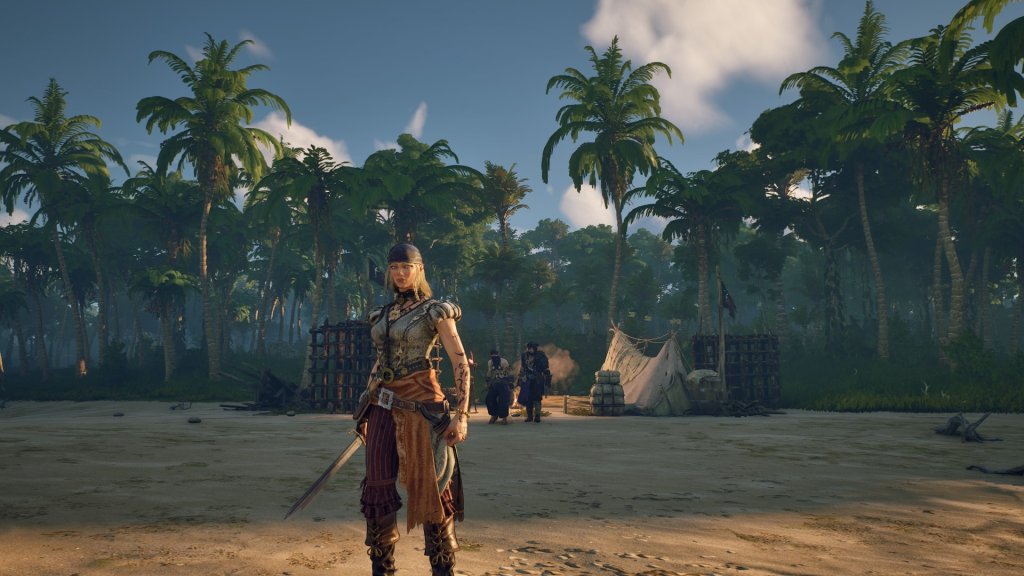
How to Transfer Windrose World Saves to a Dedicated Server
However, moving your world isn’t as simple as clicking a “Move” button. This guide will walk you through the precise steps to migrate your world data while keeping your structures, items, and player progress intact.
Before You Begin: Preparation
The most important rule of file migration is to prevent corruption. Before touching any files, make sure the Windrose client is completely closed.
- Download the Server Tools: Open Steam and ensure “Tools” is checked in your library filter. Search for Windrose Dedicated Server and install it.
- The Initialization Run: Navigate to the server files (Right-click > Properties > Browse Local Files). Run the
.exeonce. This creates the necessary folder architecture. Once the console window stops scrolling, close it via Task Manager.
Step 1: Locate Your World Save Data
Your local saves are stored in your Windows hidden folders.
- Press
Win + Ron your keyboard. - Type:
%LocalAppData%\R5\Saved\SaveProfilesand hit Enter. - Open the folder named with your Steam ID (a long string of numbers).
Important: Inside this folder is your world and player data. Copy these files; do not “drag and drop” or move them. You want to keep the originals as a backup in case the migration fails.
Step 2: The Data Swap
Now, you need to tell the server to use your local files instead of the “Default” world it generated on the first run.
- Go back to your Windrose Dedicated Server directory.
- Navigate to:
R5 > Saved > SaveProfiles > Default. - Delete everything inside this
Defaultfolder. - Paste the files you copied from your local Steam ID folder earlier.
You should see folders like RocksDB_v2 and RocksDB_v2_Backups. If you see an old RocksDB folder from a previous game version, include that as well to be safe.
Step 3: Editing the Server Identity
This is the technical part. The server needs to be manually pointed to your specific “World Island” ID.
- In your server directory, find
R5\ServerDescription.jsonand open it with Notepad. - Do Not Change: The
persistentserverIDor theinvite code. Changing these can break your server’s ability to be found. - Find Your World ID: Navigate through your server folders to:
...\Windrose Dedicated Server\R5\Saved\SaveProfiles\Default\RocksDB_v2\0.10.0\Worlds\ - Inside that folder, you will see a folder named with a long alphanumerical string. This is your WorldIslandID. Copy that folder name.
- Go back to your Notepad window and paste that string into the
WorldIslandIDfield. - (Optional) Set your password fields to
trueorfalseand enter your desired password.
Step 4: Launch and Join
Save your changes in Notepad and exit. Now, run the server executable again.
Because you didn’t change the persistent ID, the server will generate a valid invite code. Launch the game, enter the code, and you should find yourself standing exactly where you left off in your local game – but now, the world is hosted and ready for 24/7 action.
Happy Adventuring!
Last Updated on May 15, 2026

An avid listener of music from a number of countries. Writing is his hobby and passion. A follower of all the latest android and PC games. Not to mention his favorite: Mobile Legends!